Author Archives: Administrator

Test Changeloger

Kaizen v.2.2

{“changelog”:[{“version”:”2.2″,”date”:”2024-11-01″,”changes”:[{“category”:”New”,”change”:”Implement database security method”}]}],”props”:{“className”:”wp-block-block-changeloger changeloger-container”,”style”:{“–changeloger-pagination-text-color”:”#ffffff”,”–changeloger-pagination-bg-color”:”#000000″,”–changeloger-pagination-active-text-color”:”#000000″,”–changeloger-pagination-active-bg-color”:”#f5f5f5″,”–changeloger-pagination-hover-text-color”:”#ffffff”,”–changeloger-pagination-hover-bg-color”:”#333333″}},”version”:[{“version”:”2.2″,”date”:”2024-11-01″,”changes”:[{“category”:”New”,”change”:”Implement database security method”}],”children”:[]}],”paginationStyles”:{“color”:”#ffffff”,”background-color”:”#000000″}}
SELECT
    journal_voucher_id,
    company,
    voucher_type,
    charge_acc_no,
    `date`,
    purchase_order_number,
    party,
    particulars,
    total,
    deposit_advice,
    issued_by,
    checked_by,
    approved_by,
    received_by
FROM journal_voucher
ORDER BY journal_voucher_id DESC
{“changelog”:[{“version”:”2.1″,”date”:”2024-09-24″,”changes”:[{“category”:”Changes”,”change”:”Remove the label P/O Number: from voucher view but do not remove the column from table”}]}],”props”:{“className”:”wp-block-block-changeloger changeloger-container”,”style”:{“–changeloger-pagination-text-color”:”#ffffff”,”–changeloger-pagination-bg-color”:”#000000″,”–changeloger-pagination-active-text-color”:”#000000″,”–changeloger-pagination-active-bg-color”:”#f5f5f5″,”–changeloger-pagination-hover-text-color”:”#ffffff”,”–changeloger-pagination-hover-bg-color”:”#333333″}},”version”:[{“version”:”2.1″,”date”:”2024-09-24″,”changes”:[{“category”:”Changes”,”change”:”Remove the label P/O Number: from voucher view but do not remove the column from table”}],”children”:[]}],”paginationStyles”:{“color”:”#ffffff”,”background-color”:”#000000″}}
SELECT
    journal_voucher_id,
    company,
    voucher_type,
    charge_acc_no,
    `date`,
    purchase_order_number,
    party,
    particulars,
    total,
    deposit_advice,
    issued_by,
    checked_by,
    approved_by,
    received_by
FROM journal_voucher
ORDER BY journal_voucher_id DESC

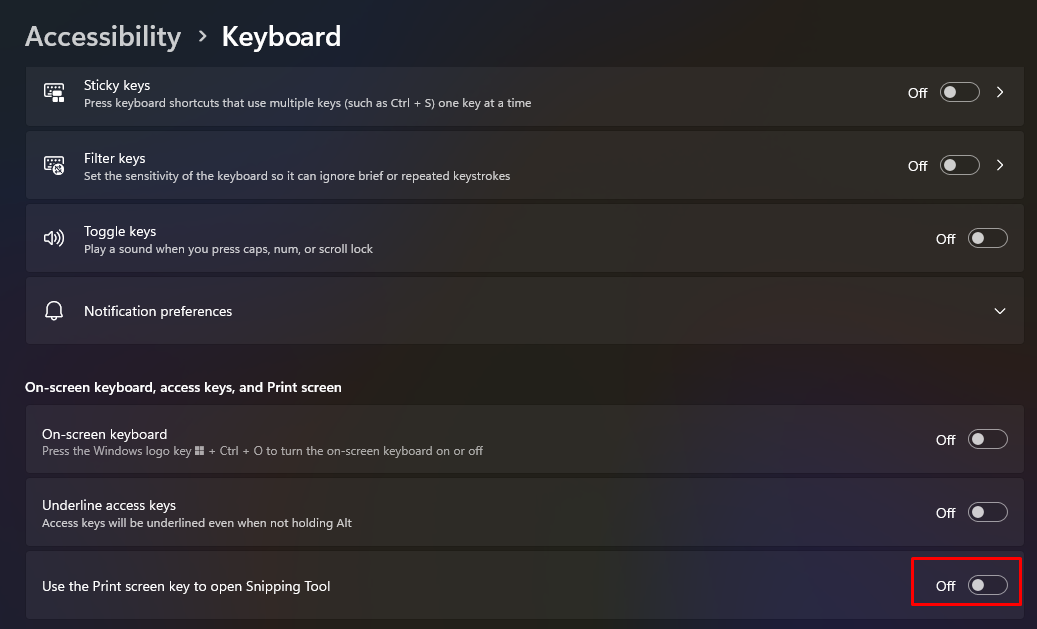
How to Disable Snipping Tool in Windows 11

These methods will not disable the Snipping Tool. The “PrtSc” button cannot be overwritten and will always call Snipping Tool:-

  1. changing the registry (https://thegeekpage.com/disable-snipping-tool/)
  2. uninstalling in App (https://thegeekpage.com/disable-snipping-tool/)
  3. disable the serivce (https://answers.microsoft.com/en-us/windows/forum/all/disable-snipping-tool/0eccf6ca-013c-4ff5-8ac0-613db83bfffc)

Solution is to turn off “Use the Print screen key to open Snipping Tool”.


What are the obj and bin folders (created by Visual Studio) used for?

The obj folder holds object, or intermediate, files, which are compiled binary files that haven’t been linked yet. They’re essentially fragments that will be combined to produce the final executable. The compiler generates one object file for each source file, and those files are placed into the obj folder.

The bin folder holds binary files, which are the actual executable code for your application or library.
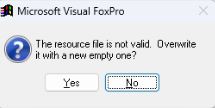
source: https://stackoverflow.com/questions/5308491/what-are-the-obj-and-bin-folders-created-by-visual-studio-used-for

SOP of Resetting Windows 10 for Acer Nitro 5

Resetting also refers to reinstalling.

  1. There are few ways to reset:-
    1. via cloud
    2. using local disk
    3. using recovery media/drive which is a USB thumb drive created via Windows 10
    4. goto https://www.microsoft.com/en-au/software-download/windows10 to create Windows 10 installation media; download “MediaCreationTool21H2.exe”, run it, downlaod download a Windows 10 installer into USB thumb drive
  2. Acer Nitro 5 fail to reset using method (a), (b), (c),  so need to use method (d).
  3. After Windows 10 is installed, avoid using Microsoft account to log into Windows.
  4. Rename PC, joing “MOBITEK” workgroup.
  5. Map “U:\” to “Usefule Software” network drive.
  6. Install the 3 Acer applications:-
    1. Care Center
    2. Nitrosense
    3. Quick Access
  7. Create a restore point.
  8. Run Windows Update to update all updates.
  9. Create a restore point if necessary.
  10. Reinstall applications and drivers:-
    • AnyDesk v. 5.3;
    • Classic Shell;
    • FreeCommander;
    • Intel via Intel-Driver-Support-Assistant (create a restore point after this);
    • from Acer Support
    • NVIDIA via GeForce Experience (create a restore point after this);
  11. Run System Image to create a system image of:-
    • newly installed Windows 10;
    • drivers installed;
    • essential software installed; and
    • Windows updated.
  12. Reinstall software as per “Remove Applications.html” generatged by Geek Uninstaller.
  13. Optional:-
    • create a recovery drive/media using USB thumb drive;
    • create a password reset key using USB thumb drive;