SELECT
    journal_voucher_id,
    company,
    voucher_type,
    charge_acc_no,
    `date`,
    purchase_order_number,
    party,
    particulars,
    total,
    deposit_advice,
    issued_by,
    checked_by,
    approved_by,
    received_by
FROM journal_voucher
ORDER BY journal_voucher_id DESC
{“changelog”:[{“version”:”2.1″,”date”:”2024-09-24″,”changes”:[{“category”:”Changes”,”change”:”Remove the label P/O Number: from voucher view but do not remove the column from table”}]}],”props”:{“className”:”wp-block-block-changeloger changeloger-container”,”style”:{“–changeloger-pagination-text-color”:”#ffffff”,”–changeloger-pagination-bg-color”:”#000000″,”–changeloger-pagination-active-text-color”:”#000000″,”–changeloger-pagination-active-bg-color”:”#f5f5f5″,”–changeloger-pagination-hover-text-color”:”#ffffff”,”–changeloger-pagination-hover-bg-color”:”#333333″}},”version”:[{“version”:”2.1″,”date”:”2024-09-24″,”changes”:[{“category”:”Changes”,”change”:”Remove the label P/O Number: from voucher view but do not remove the column from table”}],”children”:[]}],”paginationStyles”:{“color”:”#ffffff”,”background-color”:”#000000″}}
SELECT
    journal_voucher_id,
    company,
    voucher_type,
    charge_acc_no,
    `date`,
    purchase_order_number,
    party,
    particulars,
    total,
    deposit_advice,
    issued_by,
    checked_by,
    approved_by,
    received_by
FROM journal_voucher
ORDER BY journal_voucher_id DESC
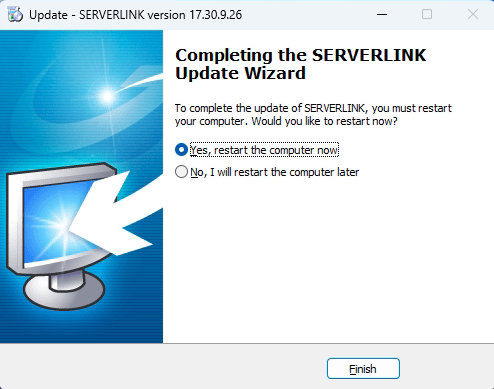
After the download has been completed, a popup will appear. Click “Yes”.
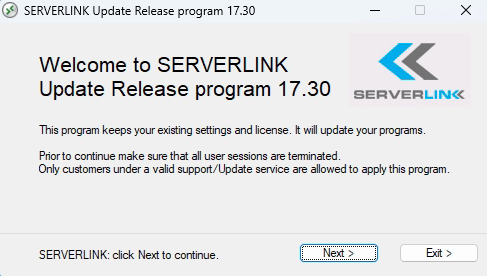
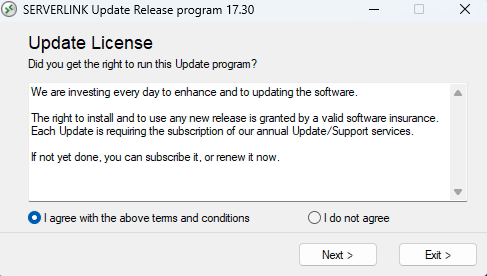
Click “Next” on each Setup.
Note: if you choose “Only dowload setup (do not install)” , then the setup file is downloaded into this folder “C:\Users\…\AppData\Local\Temp\UpdateRelease.exe“. Run the “UpdateRelease.exe” at a later date.
Restart UBS-SERVER.
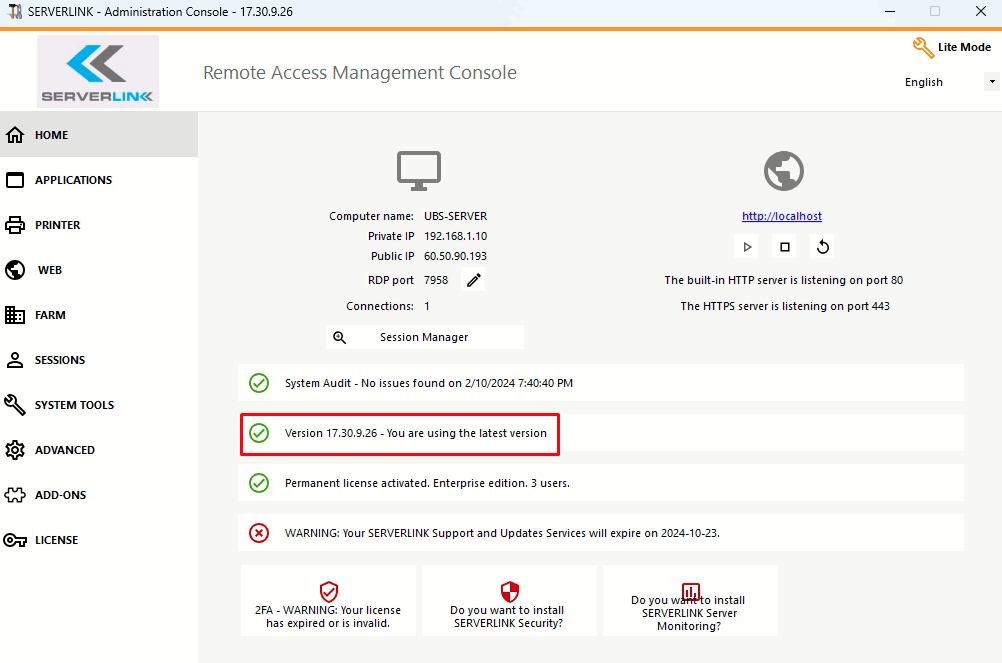
Finally, check the version displayed is the latest version (s.c.).
; For Unix only. You may supply arguments as well (default: “sendmail -t -i”).
; http://php.net/sendmail-path
;sendmail_path =
; Force the addition of the specified parameters to be passed as extra parameters
; to the sendmail binary. These parameters will always replace the value of
; the 5th parameter to mail().
;mail.force_extra_parameters =
; Add X-PHP-Originating-Script: that will include uid of the script followed by the filename
mail.add_x_header = On
; The path to a log file that will log all mail() calls. Log entries include
; the full path of the script, line number, To address and headers.
;mail.log =
; Log mail to syslog (Event Log on Windows).
;mail.log = syslog
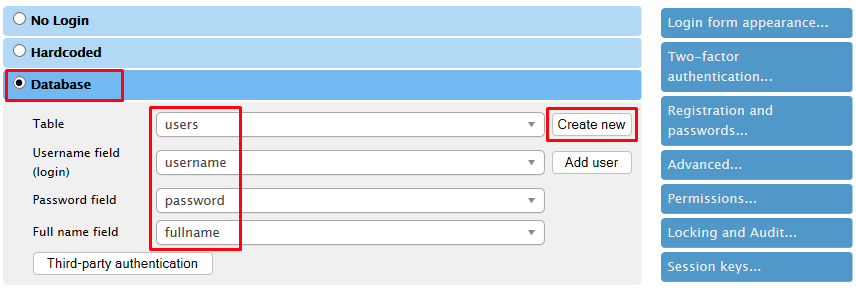
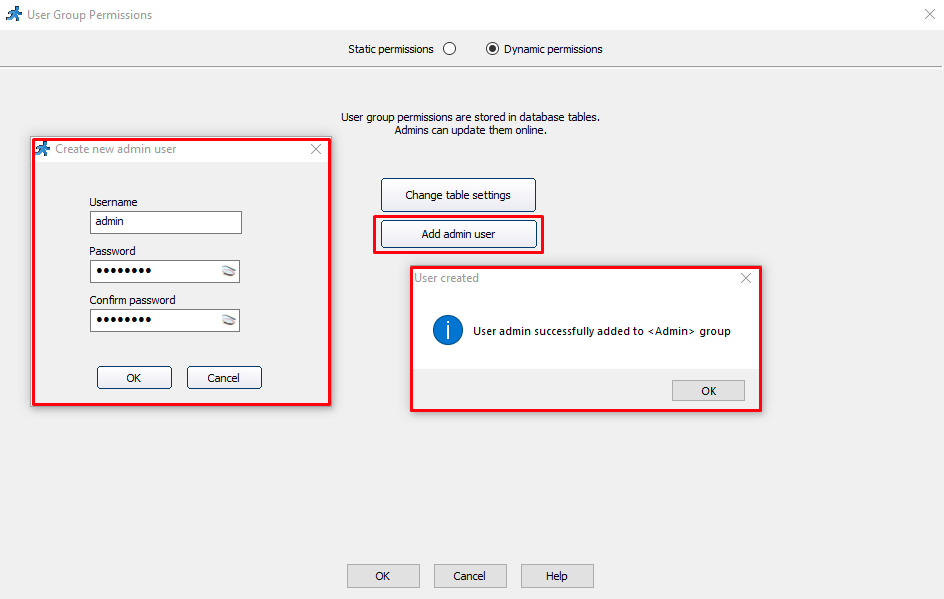
Set “Dynamic permissions” in “Security” tab. Add a new user.
Build and run the PHPRunner project in localhost. Log in using the username and password added previously. Let the PHPRunner project open in localhost.
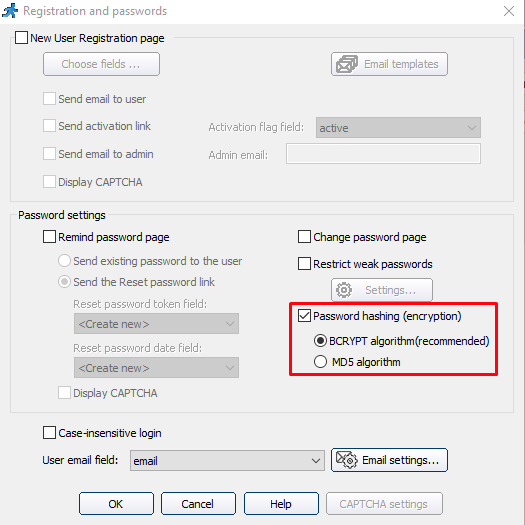
Go to PHPRunner project again. Enable “Password hashing (encryption)” in “Registration and passwords…”.
Build and run PHPRunner project again in localhost.
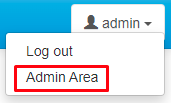
Go to “Admin Area”.
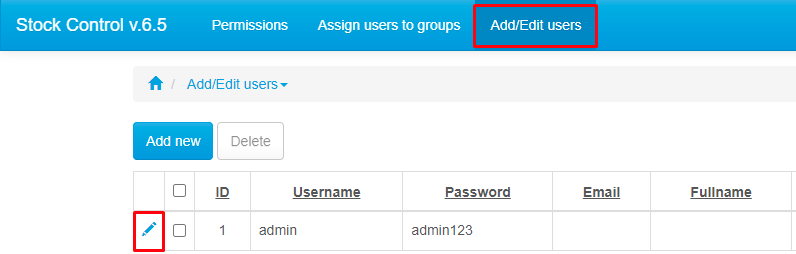
Go to “Add/Edit users”, edit the password. To use back the same password, first change the password to another password. Save it and then edit it back to change to the original password.
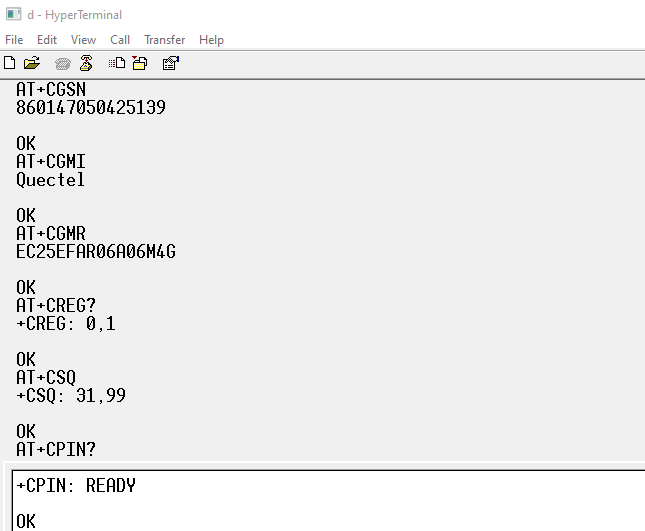
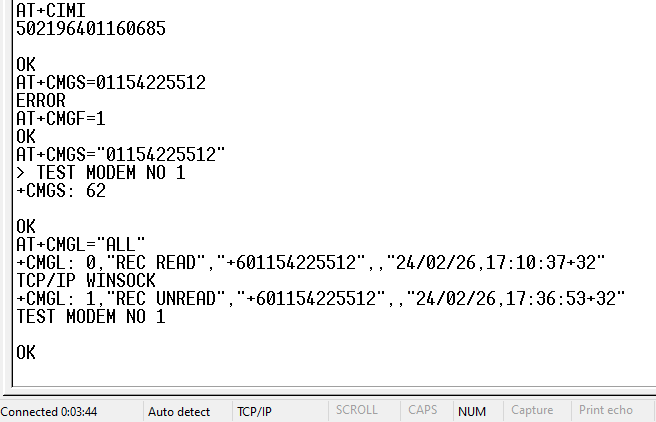
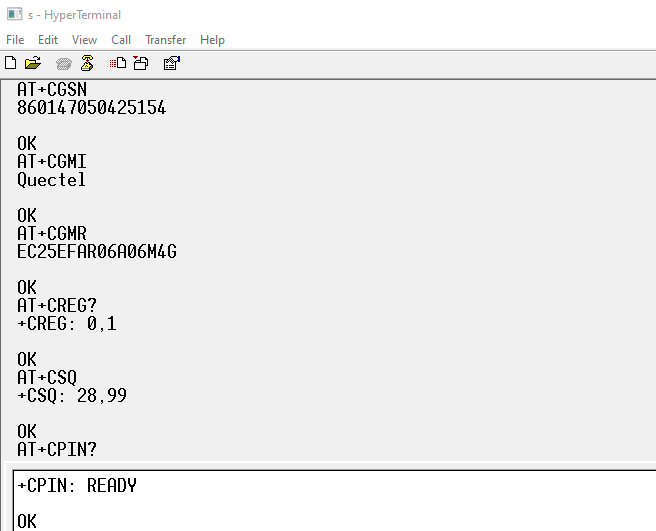
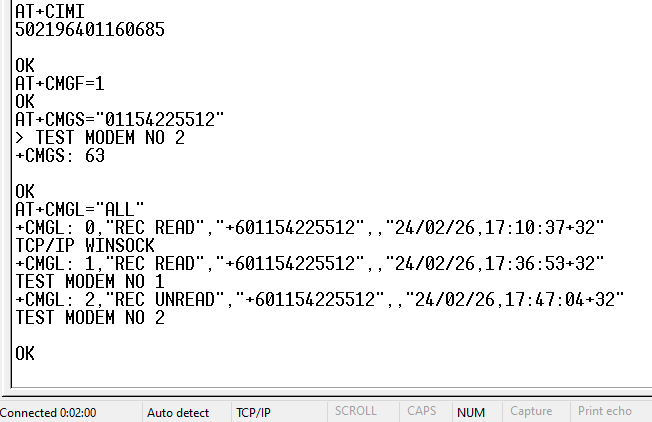
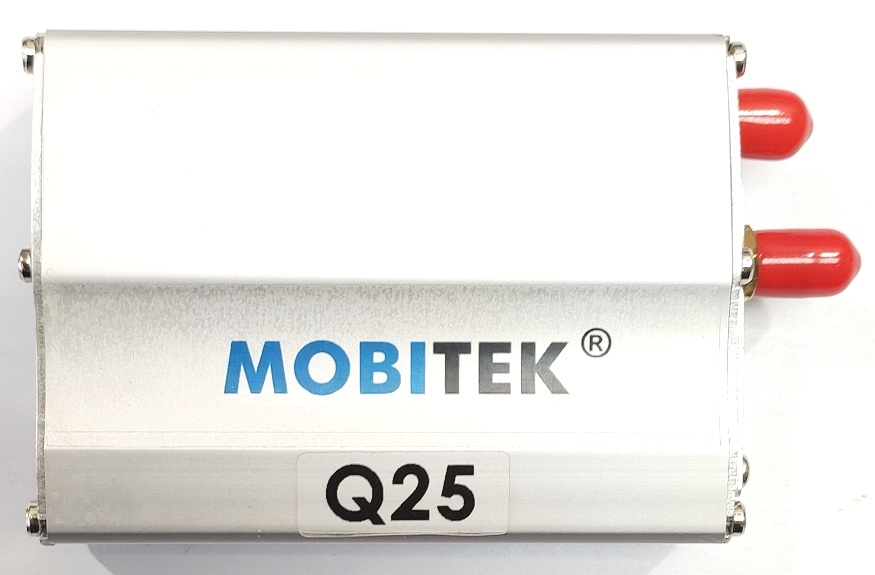
We are pleased to announce our new modem MOBITEK Q25 .
MOBITEK Q25 is a 4G Modem for IoT and SMS applications. Used by software developer to develop a SMS gateway, a SMS server, 2 factor authentication, one-time password, alert, notification and messaging solutions.
Open “..\output\connections\ConnectionManager.php”
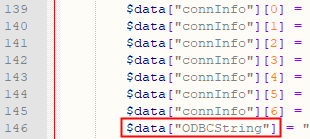
Go to the line “$data[“ODBCString”]” and change the value to:
“Provider=Microsoft.ACE.OLEDB.12.0;Data Source=C:\\Users\\mobitek1\\Desktop\\SMS360 v. 1.1\\SMSEngineVBNET.mdb;Persist Security Info=False;”;
“Data Source” is where the “SMSEngineVBNET.mdb” located.
Each directory must be separated by double backslash “\\”.
Copy all files inside “output” folder to “C:\wamp64\www\sms360\v.1.1”
v. 1.1 2024-01-03 Beta Testing Completed
TEST OBJECTIVE: Can v.1.1 work with “SMSEngineVBNET.mdb”?
TESTING METHODOLOGY
TEST RESULT
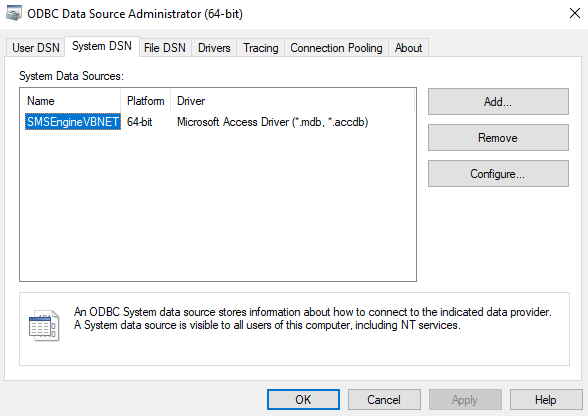
Add “SMSEngineVBNET.mdb” in ODBC 64-bit
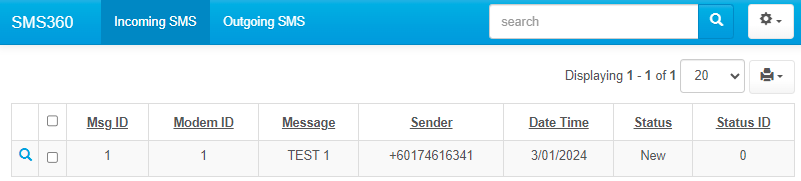
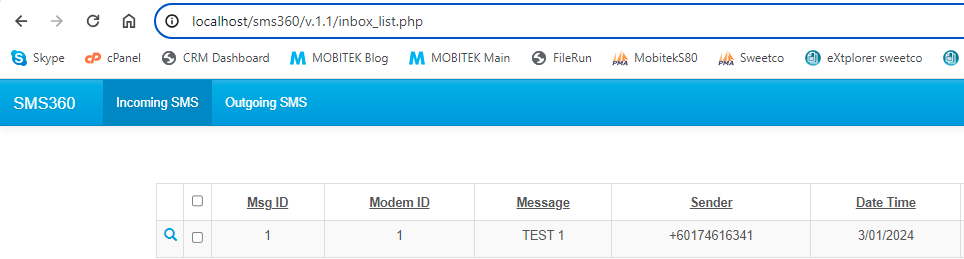
Connect v.1.1 to “SMSEngineVBNET.mdb”
Change the connection string for “$data[“ODBCString”]” in line 146 of “ConnectionManager.php” to: "Provider=Microsoft.ACE.OLEDB.12.0;Data Source=C:\\Users\\mobitek1\\Desktop\\SMS360 v. 1.1\\SMSEngineVBNET.mdb;Persist Security Info=False;";
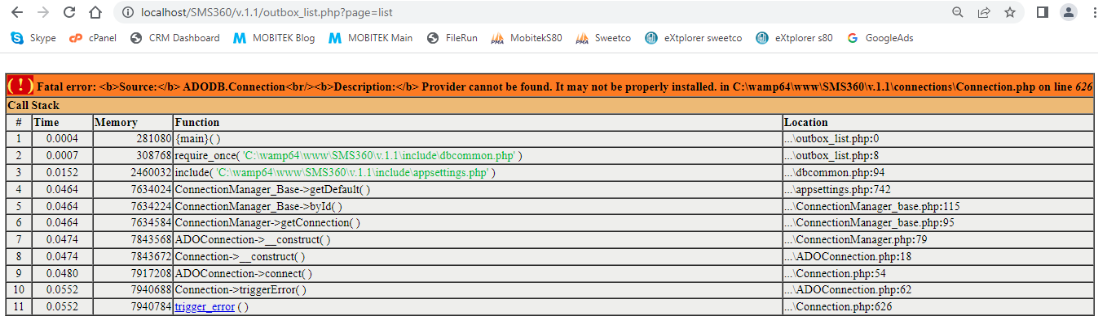
“ADODB.Connection” problem has disappeared but new error thrown
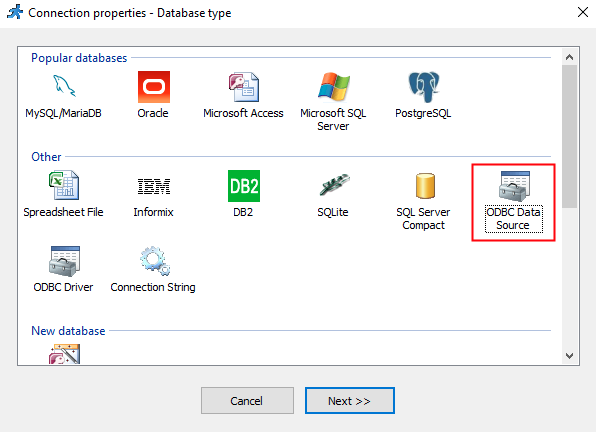
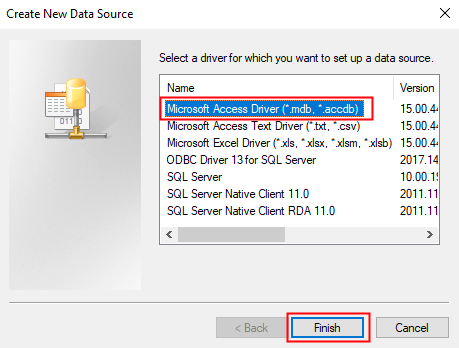
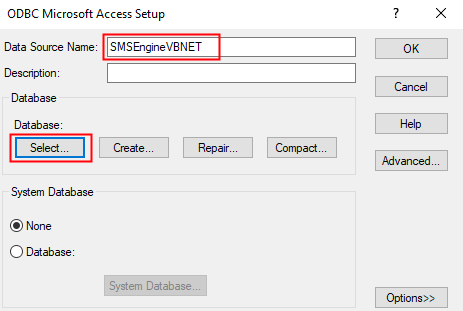
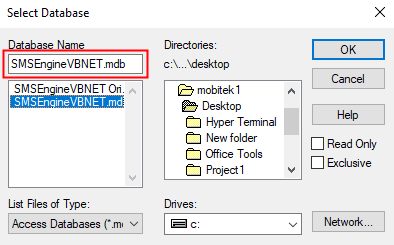
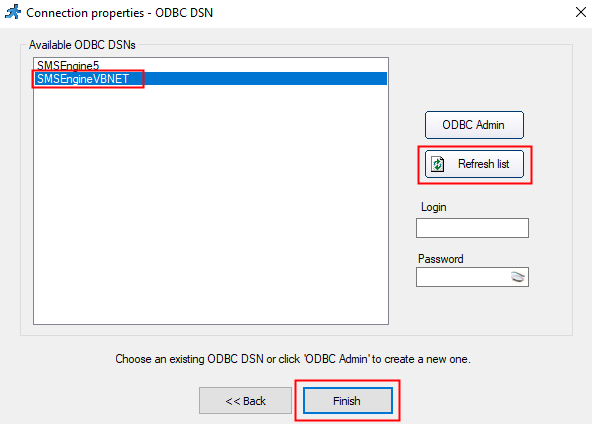
Steps to use ODBC in PHPRunner:
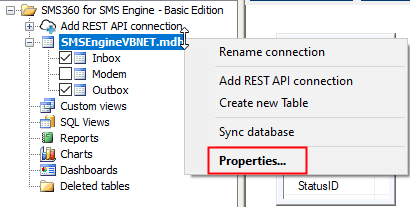
In “Tables” tab, right-click on the database and select “Properties”
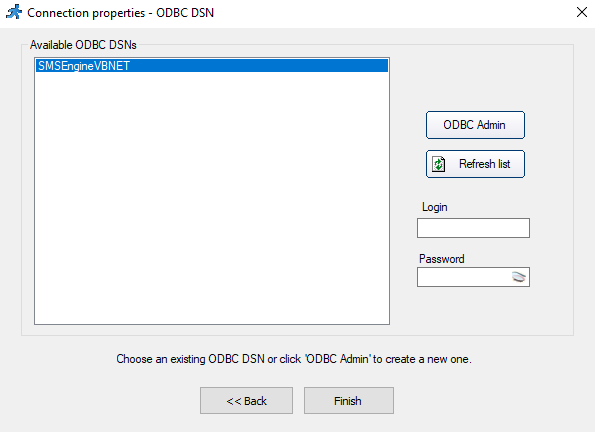
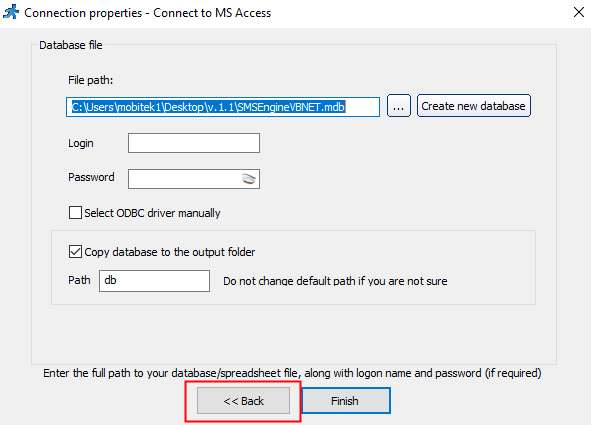
In “Connection properties”, click on “Back” button
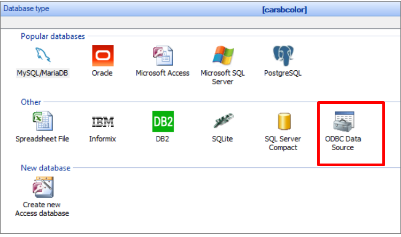
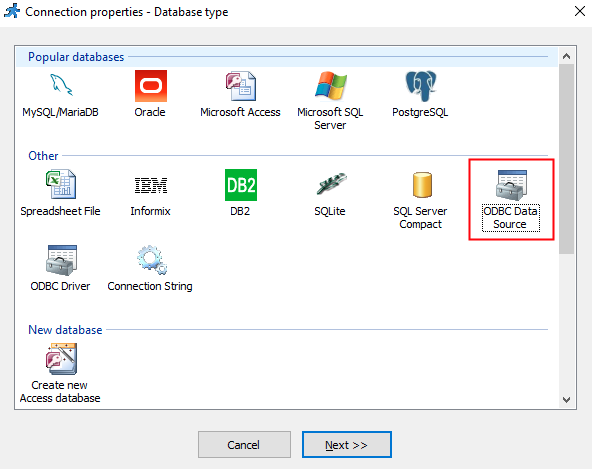
Select “ODBC Data Source”
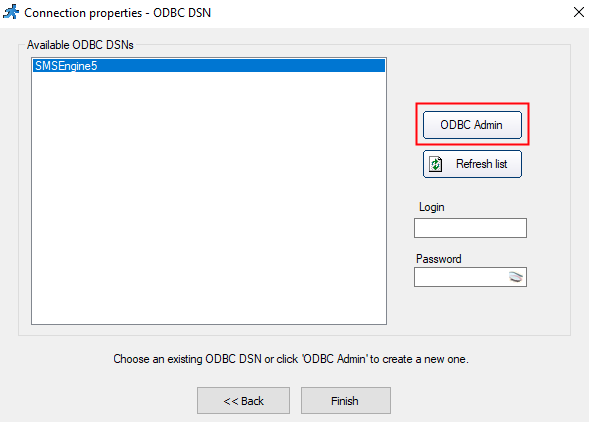
Click “ODBC Admin” button
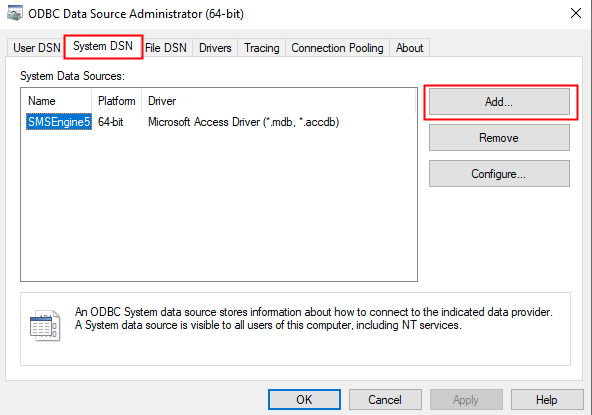
Select “System DSN” and click “Add…” button
Select “Microsoft Access Driver (*.mdb, *.accdb)”
Enter the “Data Source Name” and click “Select…”
Locate the location of the database
Click “Refresh list” button, select the new “DSN” created and click “Finish”
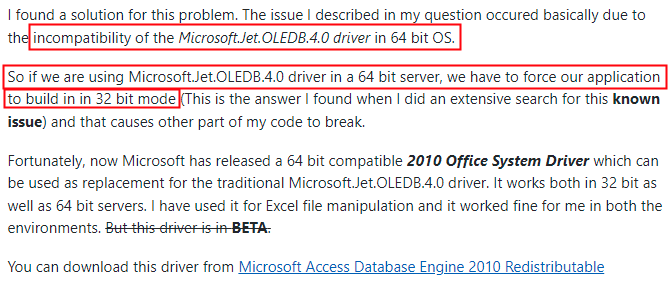
It seems like PHPRunner still use Microsoft.Jet.OLEDB driver to connect to Access database which only work with 32-bit application as suggested by PHPRunner
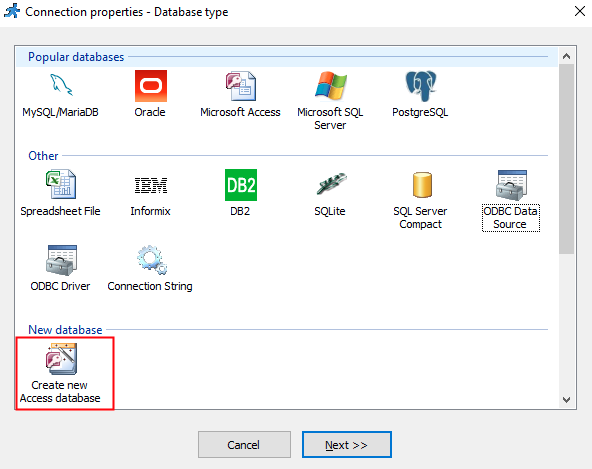
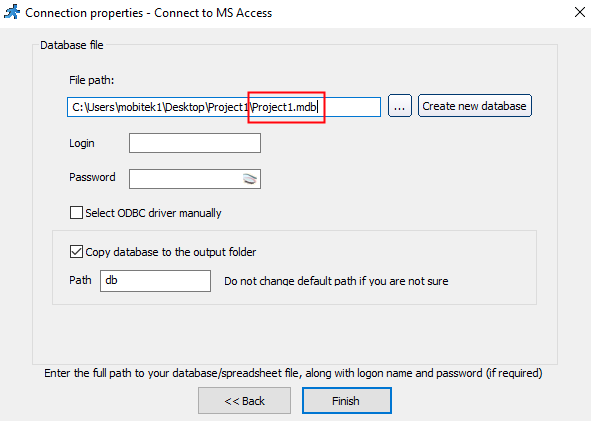
I’ve tried to create a new blank project using MS Access database in PHPRunner and also face the same problem:
connection properties
error thrown
“Unrecognized database format ‘C:\Users\mobitek1\Desktop\Project1\output\db\Project1.mdb’. in C:\Users\mobitek1\Desktop\Project1\output\connections\Connection.php on line 626”
The solutions to use Microsoft Access database in PHPRunner are:
use “Provider=Microsoft.ACE.OLEDB.12.0” in connection string (we don’t have control for this)
use 32-bit version of PHPRunner (as suggested by PHPRunner)
Edit the “ConnectionManager.php” to force it to use “Provider=Microsoft.ACE.OLEDB.12.0” instead of “Provider=Microsoft.Jet.OLEDB.4.0”
YES
Overwrite “..\output\connections\ConnectionManager.php” in line 146 from:
Provider=Microsoft.Jet.OLEDB.4.0;DSN=SMSEngineVBNET;UID=;PWD=;Driver=C:\\PROGRA~1\\COMMON~1\\MICROS~1\\OFFICE15\\ACEODBC.DLL;DBQ=C:\\Users\\mobitek1\\Desktop\\SMS360 v. 1.1\\SMSEngineVBNET.mdb;DriverId=25;FIL=\”MS Access;\”;SafeTransactions=0″