Applies to these products:-
- MOBITEK MobiGATE
- SG-B series
- not applicable to SG series
- MOBITEK Q24 STK Modem Hub
Applies to these products:-
To: Datuk Ng
From: K.L. Ng
Re: Expanding the ACCCIM YEC’s Event
I like to propose to ACCCIM 青商团 to hold a concurrent business expo and business matching events during ACCCIM AGM and YEC (the event can be extended from 2 days to 4 days).
Reasons:-
MOBITEK SMS API version 9.2 — manual for software developer has been revised and published. Please view it at http://www.mobitek.my/main/mobitek-sms-api-version-9-manual-for-software-developer/
Step by step guide on how to change COM Port number
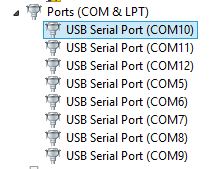
Step 1: Open device manager, and expand ‘Ports (COM & LPT). I will use MobiGATE SG-B-8-U for this example
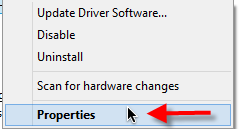
Step 2: Select the COM Port you want to change, right click and click on ‘Properties’
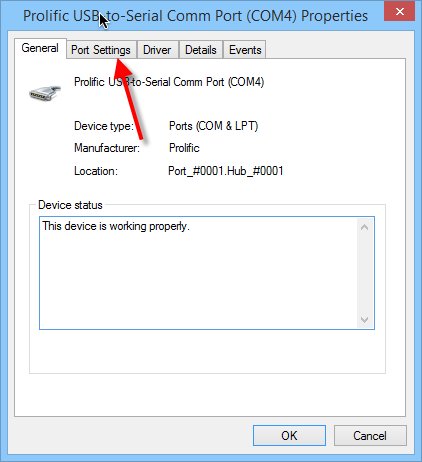
Step 3: Click on ‘Port Settings’ tab
Step 4: Click on ‘Advanced’
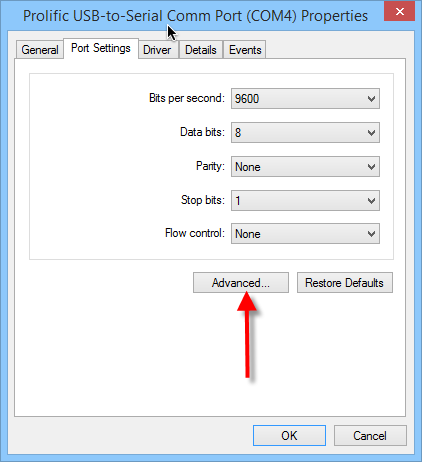
Step 5: Select the COM Port that is not in use. I will select COM Port 26 for this example.
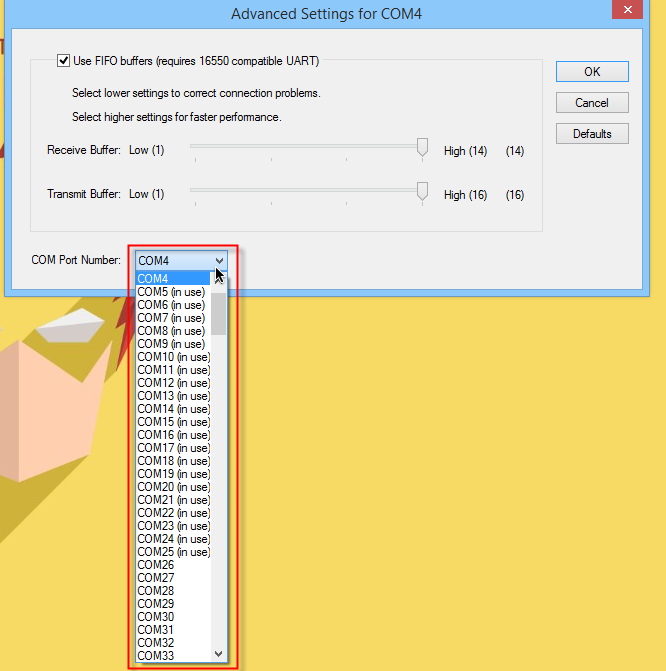
Step 6: Click on ‘OK’. The COM Port is changed now.
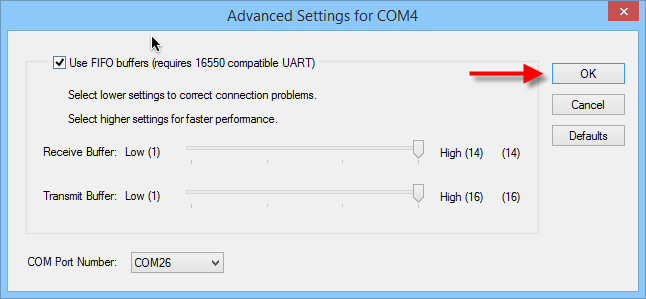
Applies to these products:-
When connecting to a VNC Server (applies to both RealVNC and TightVNC), the VNC client (applies to both RealVNC and TightVNC) is unable to connect, and shows this message, “Connection closed unexpectedly”.
The followings settings are properly configured and they are not the issues:-
However, the log file of TightVNC server shows:-
[ 2132/ 4332] 2016-06-15 13:23:30 ! write() function stopped because transport has not been initialized yet.
[ 2132/ 4332] 2016-06-15 13:23:32 ! AnonymousPipe::read() failed (m_hRead = 000000000000030C)
[ 2132/ 4332] 2016-06-15 13:23:32 ! The Pipe's read function failed after ReadFile calling (The pipe has been ended. (109))
[ 2132/ 4332] 2016-06-15 13:23:32 ! Exception during DesktopClientImpl creaion:
[ 2132/ 4332] 2016-06-15 13:23:32 ! Error during RFB initialization:
[ 2132/ 4332] 2016-06-15 13:23:32 ! Connection will be closed:
[ 4500/ 4420] 2016-06-15 13:23:42 ! Desktop server application failed with error: The desktop server time out expired
The root caused is “RFB” on the VNC server.
Solution:-
Another reason for “Connection closed unexpectedly” is that RealVNC version 4.x does not work in Windows 7. For Windows 7, it requires Real VNC version 5 and above.
This error will appear if you copy the “dll” file from your development PC over to your production PC without running the “setup.exe” file on the production PC.
Solution:-
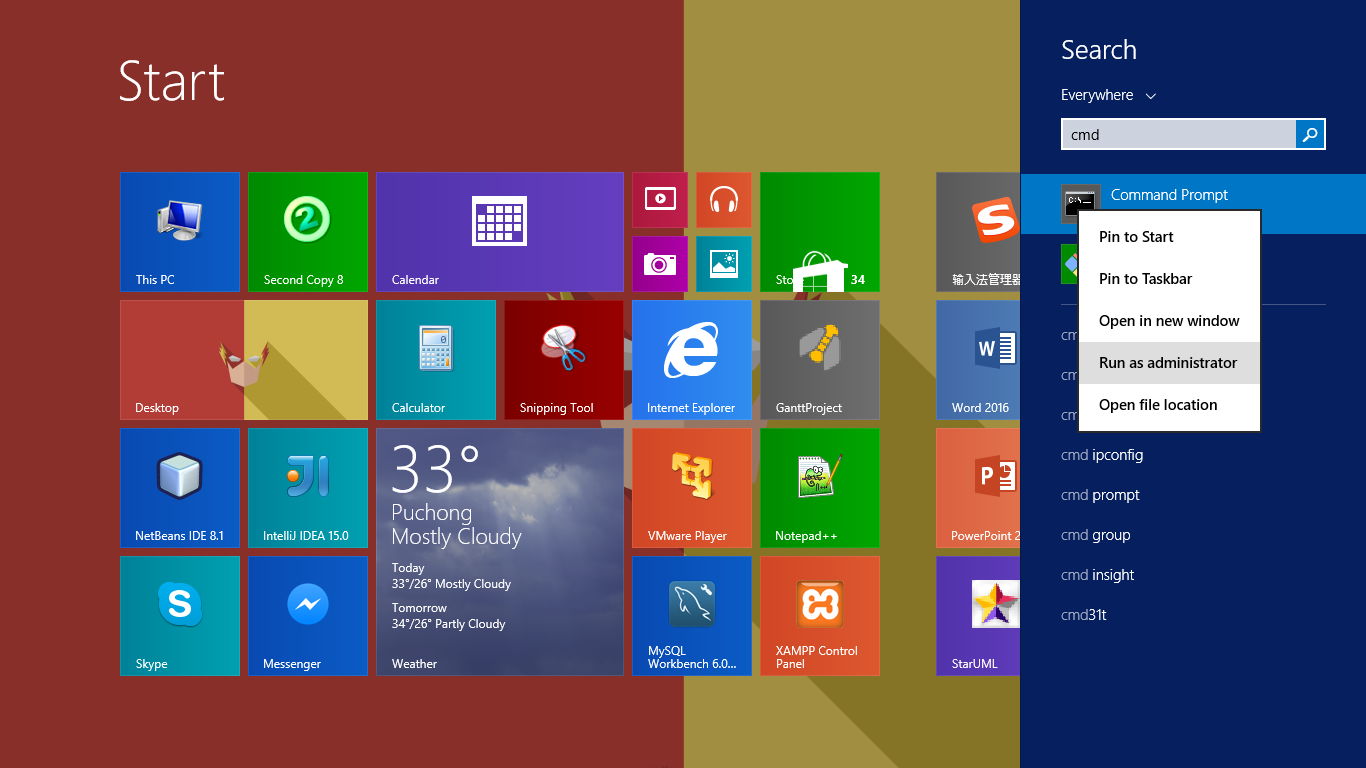
Step 1: Click Start and type command or cmd in the search box. It will depend on what Windows version you have. We will use Windows 8.1 x64 bit for this example.
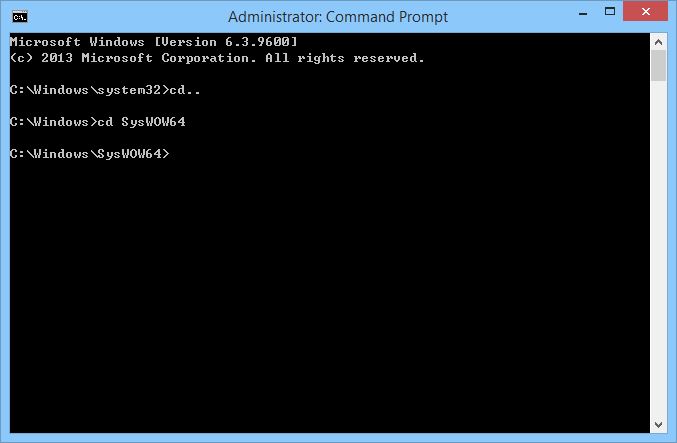
Step 2: A command prompt will appear. Navigate the command prompt to C:\Windows\SysWOW64
Step 3: Type “regsvr32 [path of dl]” at the command prompt. In this case, I will use MobitekSMSAPI7.dll file, so the command will be:
C:\Windows\SysWow64\regsvr32 “MobitekSMSAPI7.dll”
Press enter to execute.

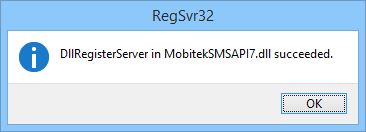
Step 4: A dialog box will pop out, indicating that the dll file is successfully registered into your system.
We have re-released the MOBITEK SMS API version 9.2
2 New functions:-
Voice.AnswerCall()
Voice.CheckCall()
Voice.End()
Voice.MakeCall()
Voice.CallerID
Allow “Full Control” to “Users” to the folder of the application. In this example, itis “C:\Program Files (x86)\SMS Engine Enterprise Edition”
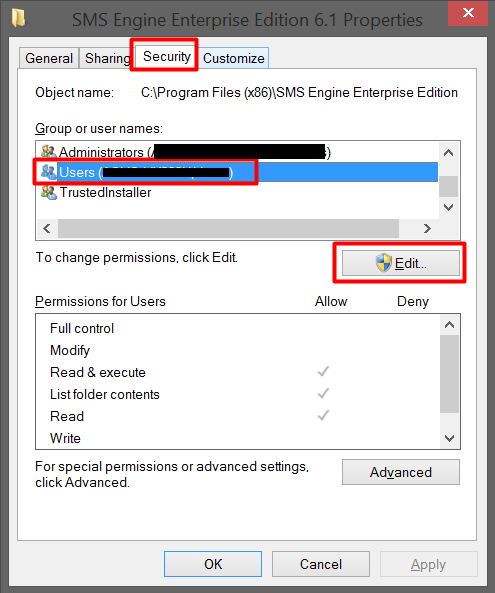
Security -> Users -> Edit
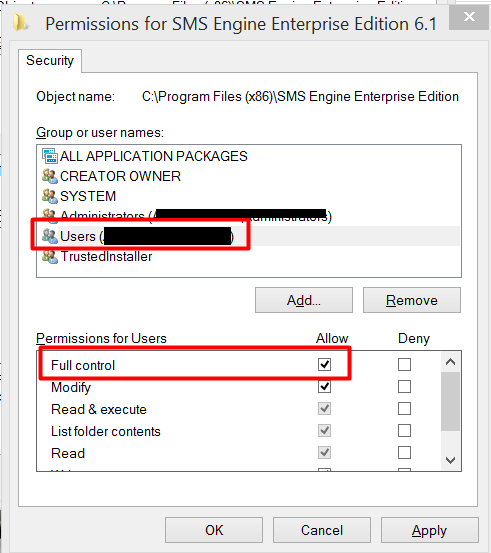
Users -> Full control
Version 4.5 supports 8 STK Engines. The setup.exe will create 8 MOBITEK STK ENGINES (previously was 4 STK Engines) in order to support the new MOBITEK Q24 STK MODEM HUB model: B-8-U
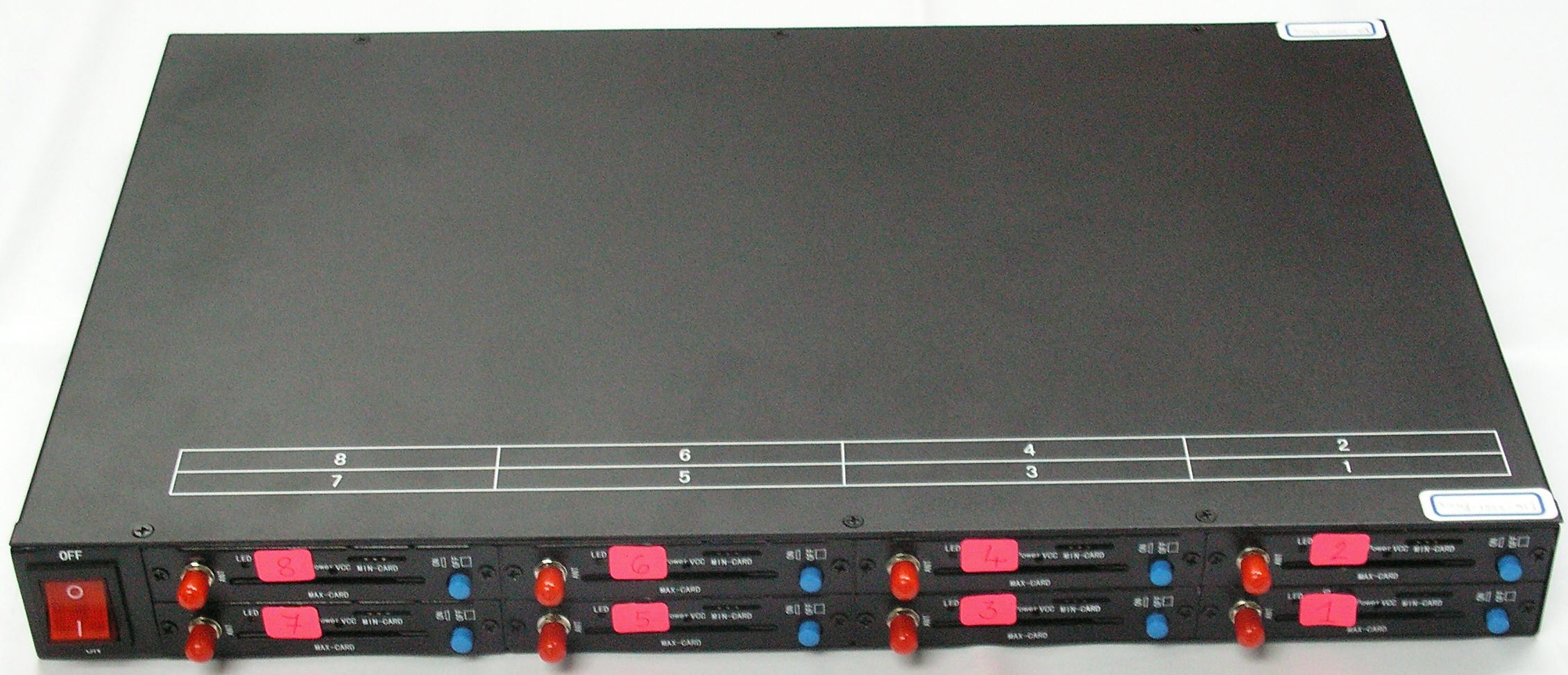
MOBITEK Q24 STK MODEM HUB
model B-8-U