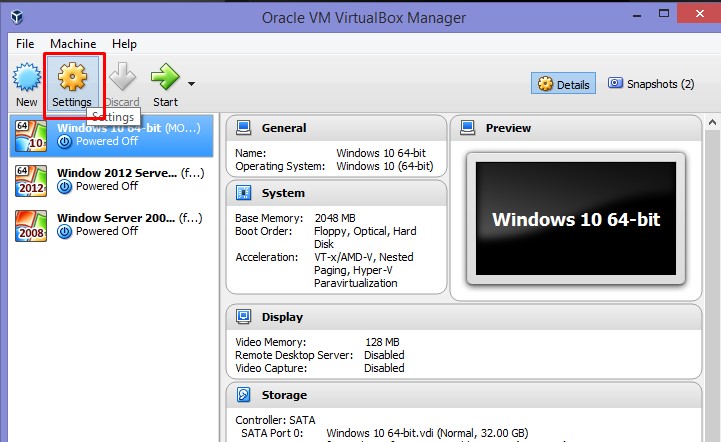
- Connect modem to host OS.Open VirtualBox, go to the setting of your virtual machine.
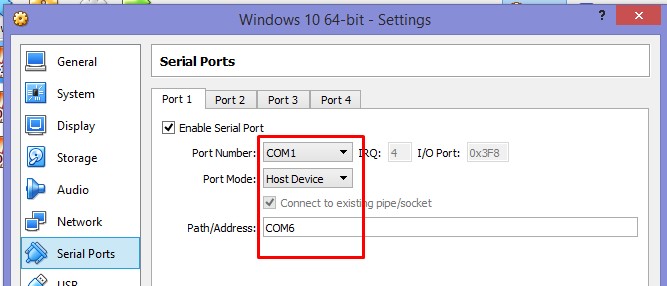
- Go to Serial Ports and set the setting as below:
- Enable Serial Port.
- Set Port Number: (port number inside the guest OS)
- Port Mode: Host Device
- Path/Address: (port number of modem that is connected to host OS)
Note: Windows provides legacy names only for COM ports 1 through to 9. For all other COM ports you must use the full device naming convention under Windows. So if you decide to use COM10 instead of COM9, using COM10 at Path/Address won’t work. Instead you have to use “\\.\COM10”. (source: https://stackoverflow.com/questions/37728628/connection-through-com-port-between-host-and-guest-in-virtualbox)
Click OK
- Note: if this step is skipped, hyper terminal will have no response if connected to the “Sierra Wireless AT Command Port”
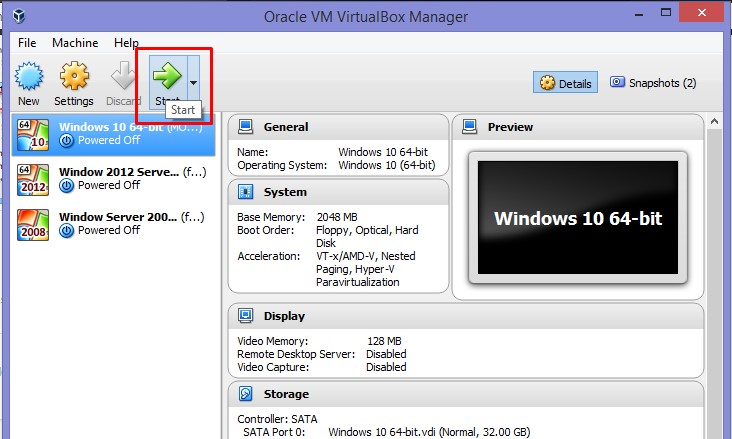
- Run the virtual machine.
- Go to device manager in VirtualBox to check the COM Port. In this example, the MOBITEK S80 Modem that is connected to the USB port (COM6) of host machine, the USB port is then mapped serial port (COM1) of VirtualBox.
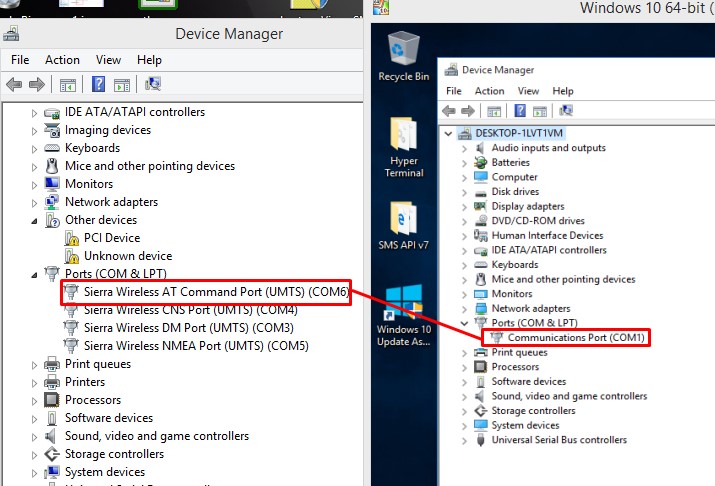
- In VirtualBox, the modem is connected to COM1 which is the serial port .
- In the host machine, the same modem is connected to COM6 which is the USB port.
How to Change the IP Address of MobiGATE Using “upgrade.exe”
Problem: unable to change the IP address via MobiGATE’s administrator web page (serial port server).
Applies to:
- all models of MobiGATE SG-B-x-L-x and
- MOBITEK Q24 STK Modem Hub B-8-L
Steps:
- Run the program “upgrade.exe”. Download from here … (upgrade.zip)
- Click “Search all devices” to find IP address of MobiGATE.
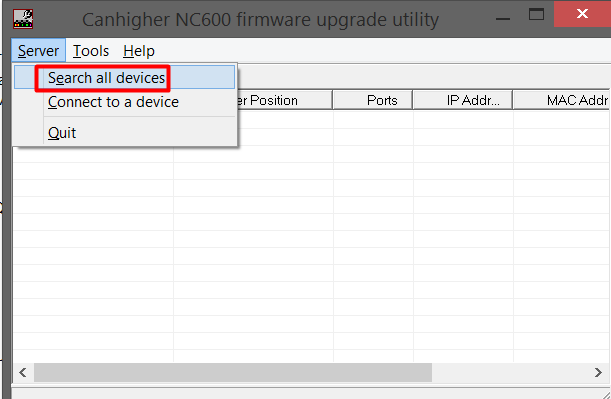
- Optional: click “connect to device” if want to connect to MobiGATE.
- If found, it will show a list of MobiGATE with IP address.
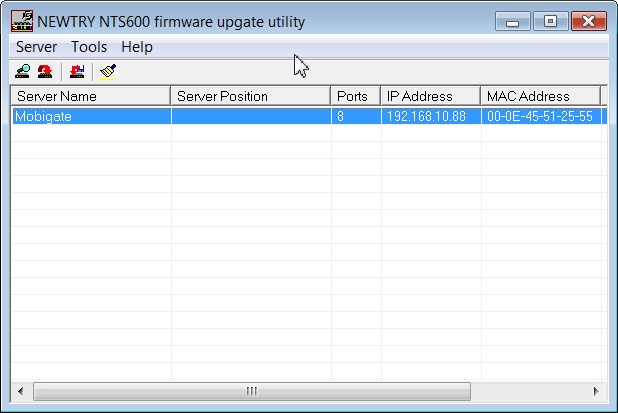
- Select MobiGATE (192.168.10.88).
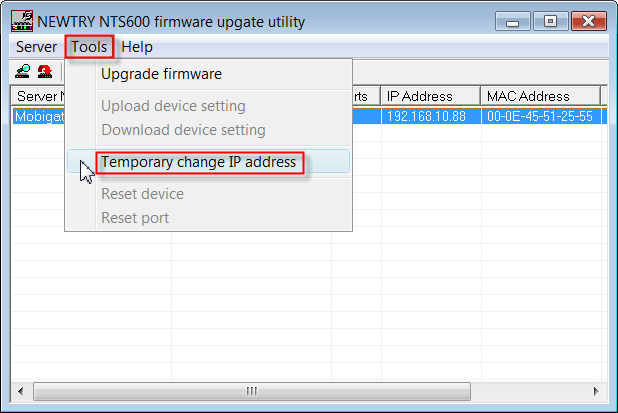
- Click “Temporary change IP address”.
- Insert temporary IP address (192.168.10.98) and click OK.
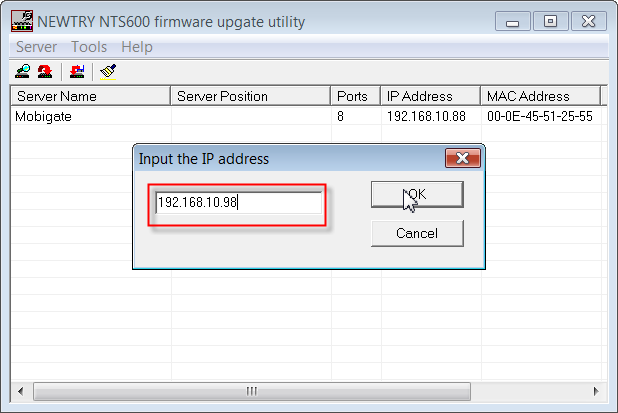
- The new temporary IP address will be updated on the list. Note: it will revert back to its old IP address (192.168.10.88) after you power off.
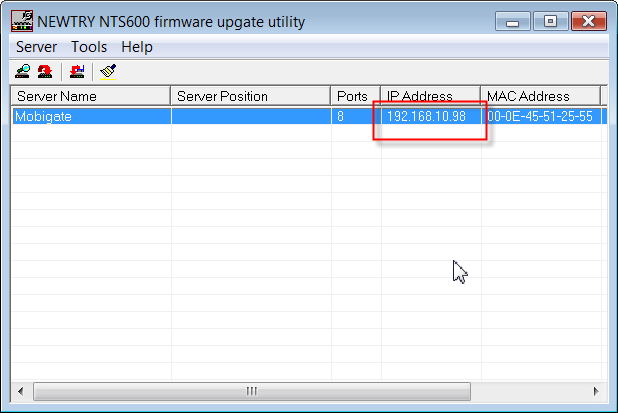
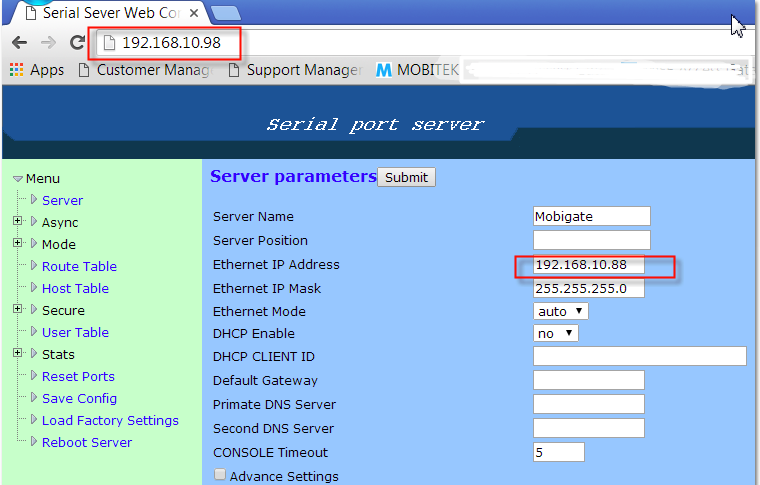
- Now access the web menu of MobiGATE via web browser using the temporary IP address (192.168.10.98), change the IP address from 192.168.10.88 (old) to 192.168.10.98 (new), click on “Submit”.
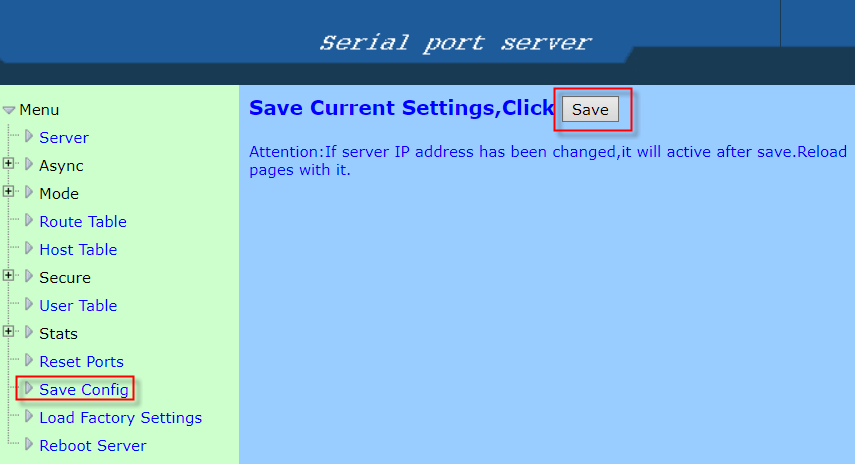
- Then goto “Save Config” menu and click “Save” to permanently change the IP address to 192.168.10.98 (new).
VCOM Showing “Connected” Then “Disconnected”
Issue: VCOM shows “Connected” then “Disconnected”.
Applies To:
- MobiGATE Model SG-B-8-L-W
- SMS Engine version 5 and 6
Cause:
- if any modem does not have a SIM card inserted and engine is started, the engine will try to initalise the modem, VCOM shows “Connected”
- when the initialisation fails, VCOM shows “Disconnected”
- refer video clip below, Modem ID 2 (COM port no. 17) has a SIM card inserted with blue LED blinking, but others do not have any SIM cards, only Modem ID 2 stays “Connected”, others will show “Connected” then “Disconnected”
USB Driver of MOBITEK S80 Supports Windows Server 2008, Windows Server 2012, Windows Server 2016 and Windows 10
We have conducted a test in 4 different OS which is:-
- Windows Server 2008 32-bit;
- Windows Server 2012 64-bit;
- Windows Server 2016 64-bit; and
- Windows 10 64-bit.
Note: all the above OS were running in a virtual machine (VirtualBox).
Then we left MOBITEK S80 running for 4 hours in each OS, and the COM Port DID NOT disappear.
MOBITEK S80 was not connected to power cable, it is using power from the USB cable.
The USB driver version is 11.5.
| OS | DID COM PORT DISAPPEAR AFTER 4 HOURS (YES / NO) |
SCREEN CAPTURE |
|---|---|---|
| Windows 2008 32-bit | No | 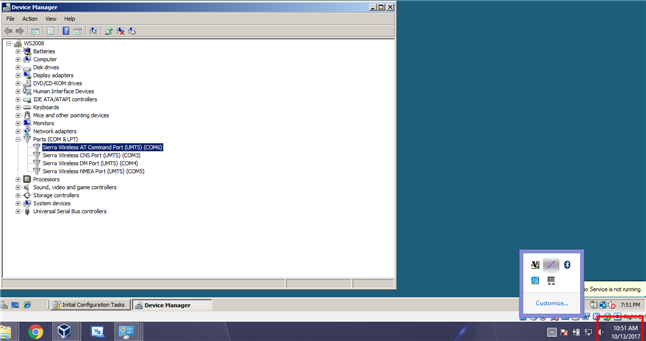
|
| Windows 2012 64-bit | No | 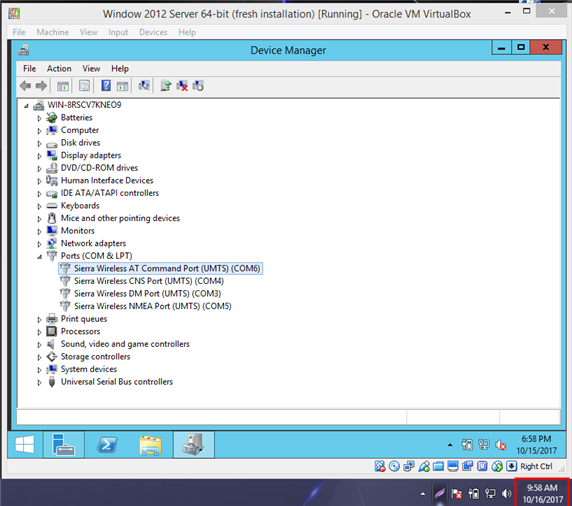
|
| Windows 2016 64-bit | No | 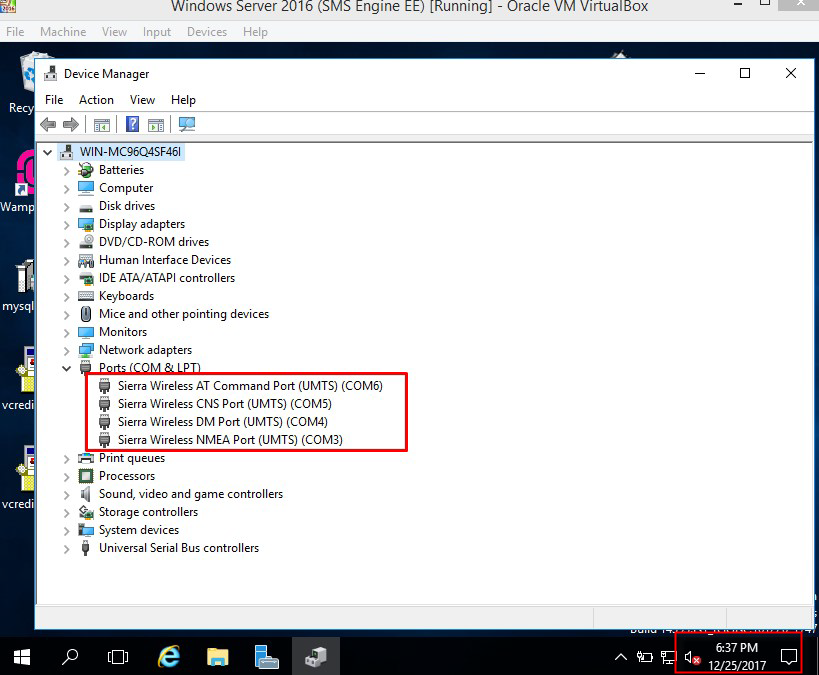
|
| Windows 10 64-bit | No | 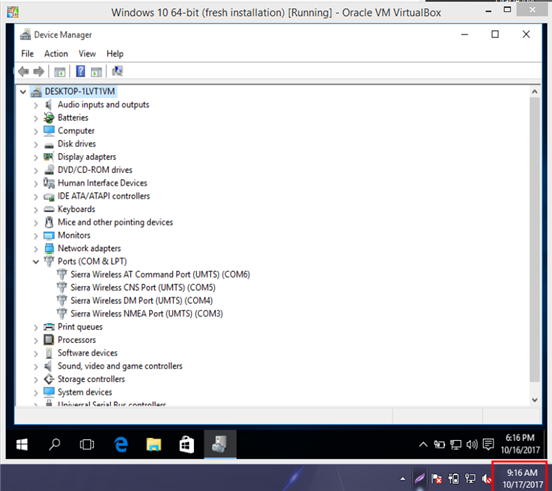
|
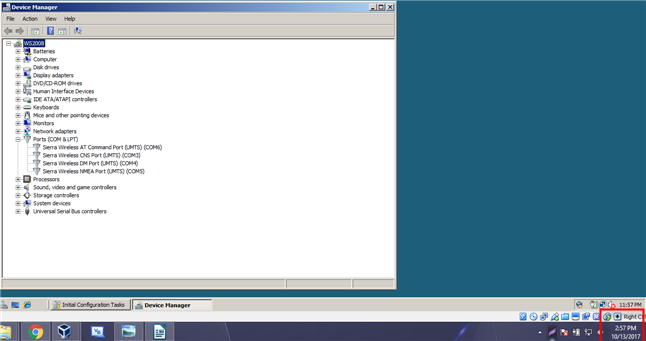
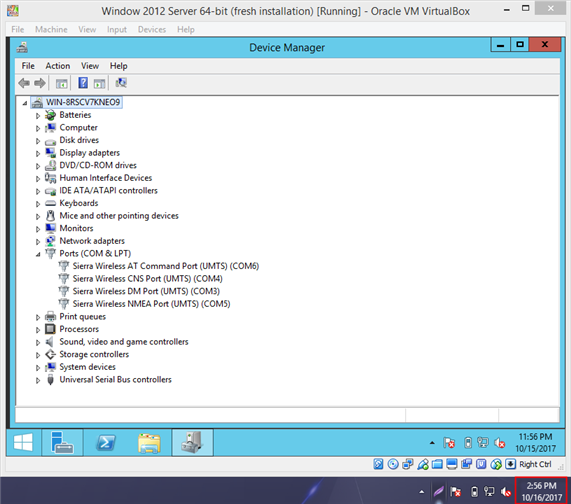
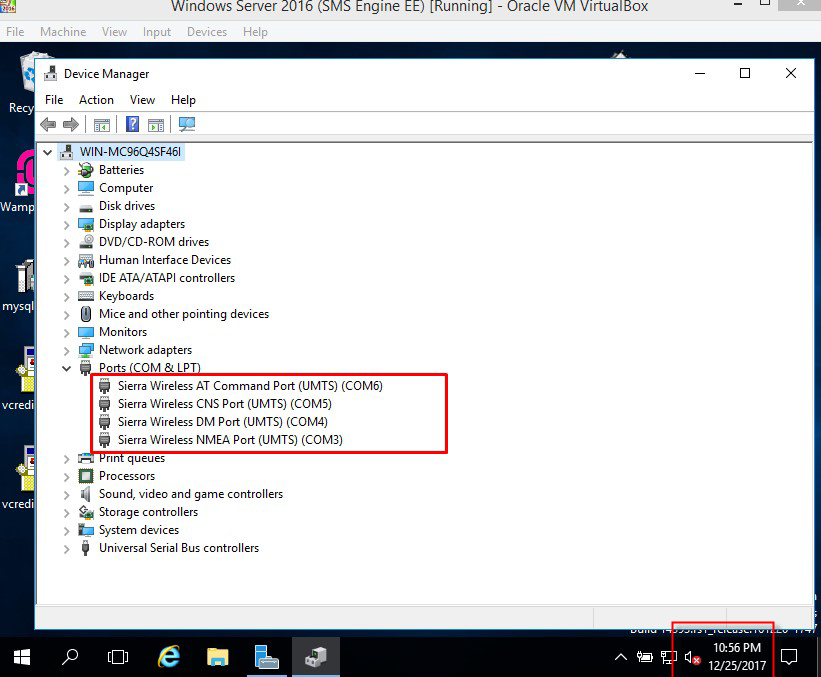
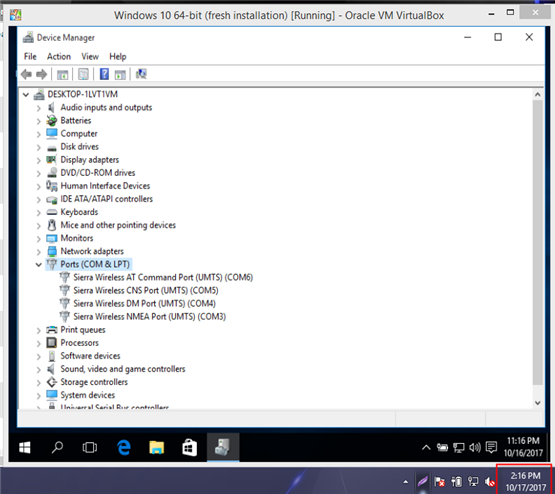
Therefore the USB driver, version 11.5, for MOBITEK S80 works in these 4 OS:-
-
- Windows Server 2008 32-bit;
- Windows Server 2012 64-bit;
- Windows Server 2016 64-bit and
- Windows 10 64-bit.
MOBITEK STK API version 5.0 End of Support Notice
MOBITEK® STK API version 5 is no longer supported effective on 26th of October, 2017. Please upgrade to version 6.
More Information
- MOBITEK STK API
- MOBITEK STK API version 6.5 Sample Codes
- MOBITEK STK ENGINE version 4.5 is Released
- “OK” Bug in MOBITEK STK API version 6.3
- How to Write a Multi-Threaded Java Code with MOBITEK Q24 STK API
- Modems in MOBITEK Q24 STK Modem Hub is Not Able to be Connected
- Java Sample Code for MOBITEK STK API version 6.3 — Send and Read SMS
- How Do You Locate a SIM Card in MOBITEK Q24 STK Modem Hub?
- List of Customers of MOBITEK STK API and MOBITEK Q24 STK MODEM
- Does MOBITEK STK API Support Android OS?
- How to Set-up MOBITEK Q24 STK MODEM HUB in Overseas but Connected to My Application in Local?
MOBITEK STK API version 6.5 Sample Codes
Download sample codes for version 6.5:
More Information
Benefits of ASEAN Economic Integration
by Ng Kong Leng
Introduction
I am a seasonal entrepreneur who have been travelling among the ASEAN countries for market development, trade missions organised by MATRADE and business meetings since 2011.
The countries that I have been are Singapore, Philippines, Indonesia, Vietnam and Thailand.
When I heard that ASEAN members will integrate their economies as ASEAN ECONOMIC COMMINUTY (AEC), this is to me, a good news.
The primary objective of this essay is to share my personal experience in doing business in ASEAN, the problems that I have encountered and the benefits I hope to derive from the integration of ASEAN economy.
The secondary objective is to explore the benefits of AEC for SME in a tangible manner.
Support Notices as at Month of Sep 2017
SMS360 — E-Mail Edition Cannot Connect with POP3 Server of GMail
Note: this case remain unsolved as at 2020-03-09
SMS360 E-Mail Edition version 5.4.1(beta)
*** Log dated on 2017-08-10 10:30:06 AM ***
Error Location: EmailtoSMS.CheckEmail()
Error Number: 91
Error Description: Object variable or With block variable not set
Unable to connect to POP3 server of Gmail despite had set to “allow less secure app to access”.
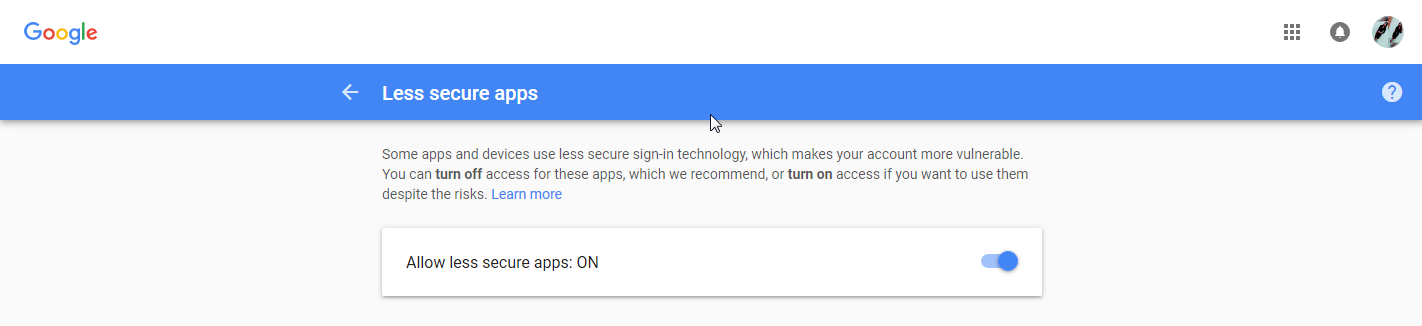
All messages in the inbox remain unread. By right, all messages should be read by SMS360.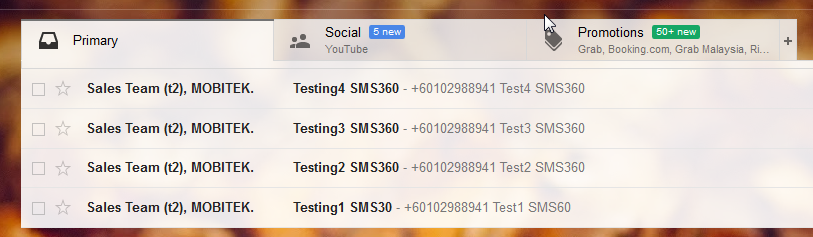
Refer to https://devanswers.co/allow-less-secure-apps-access-gmail-account/
If you still can’t log into your account through your application after changing the “Allow less secure apps” setting, consider enabling 2-Step Verification and creating an application-specific password. If you cannot access your account using an app password, your application may not meet Google’s new security standards. For example, older versions of Outlook may no longer work with Google’s authentication system. Consider upgrading your application to the latest version and try logging in again.
Conclusion: we need to revise the VB6 code of SMS360 — E-mail Edition.