Author Archives: Taufiq

How To Solve The Problem With Quectel USB NMEA Port Missing

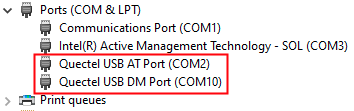
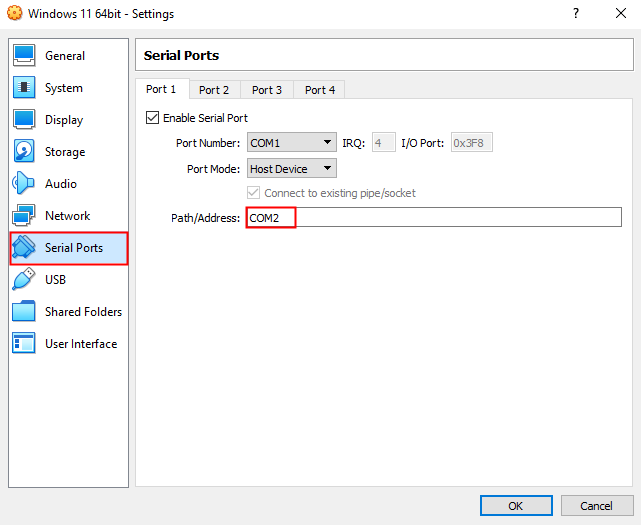
When connecting MOBITEK Q25 using USB cable, “Quectel USB NMEA Port” is missing and the Device Manager keeps refreshing. When connecting “Quectel USB AT Port” to Hyper Terminal (in below example COM2), the modem is not responding to any AT commands.

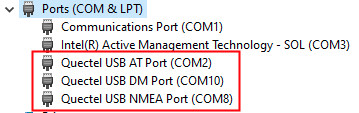
MOBITEK Q25 should have 3 ports:

  • Quectel USB AT Port
  • Quectel USB DM Port
  • Quectel USB NMEA Port

Steps to restore “Quectel USB NMEA Port”:

  1. Open Hyper Terminal or QCOM.
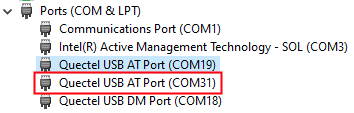
  2. Connect using the other “Quectel USB AT Port”. In this example “COM31”.
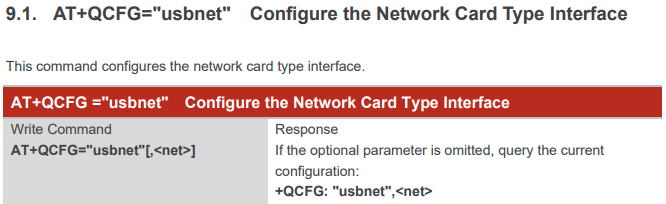
  3. Use AT+QCFG=”usbnet” to configure the network card type interface.
  4. Type below commands into Hyper Terminal or QCOM.
    • AT
    • AT+QCFG=”usbnet”,0
    • AT+CFUN=1,1
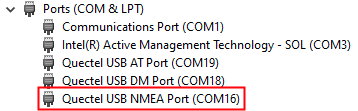
  5. Open Device Manager, “Quectel USB NMEA Port” should appear now.
  6. Connect “Quectel USB AT Port (COM19)” to Hyper Terminal. The port should respond to any AT commands send to it.

SOP of When Unifi Network is Down (How to Set-Up 4G Network for LAN)

  1. When Unifi network is down, there will be no internet access.
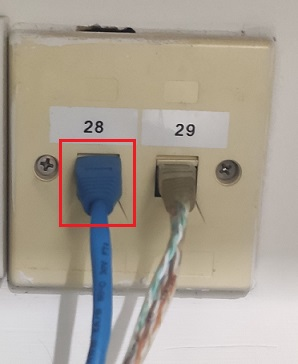
  2. Firstly, unplug the LAN cable that is connected to Etanium from D-Link DES-1005D Switch.

  3. Insert Yoodo SIM card into EC20 4G router.
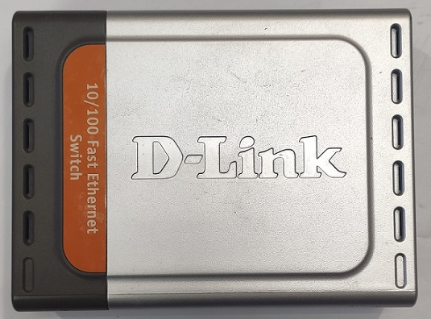
  4. Use D-Link DES-1005D Switch.
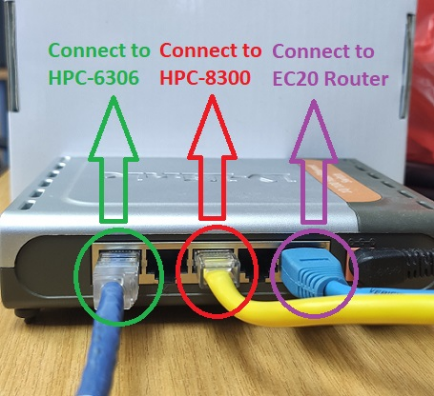
  5. Connect the LAN cables as picture below:
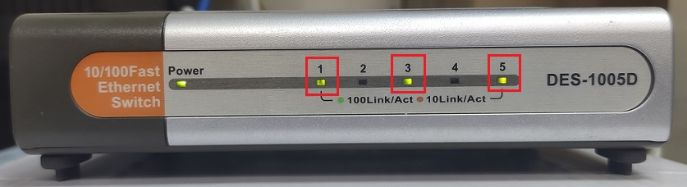
  6. Make sure all LEDs of D-Link DES-1005D Switch that connected to all LAN cables are blinking.
  7. Finally:-
    • there is internet access in LAN;
    • HPC-8300 is able to access internet via Yoodo 4G network;
    • HPC-6306 is able to access internet via Yoodo 4G network; and
    • HPC-8300 is able to connect to HPC-6306 and to print.
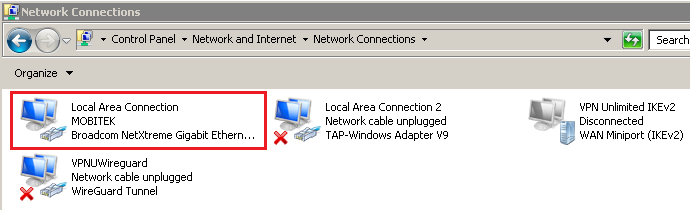
  8. If HPC-6306 is not able to access the internet, go to "Control Panel" -> "Network and Sharing Centre" -> "Change adapter settings" and enable “Local Area Connection MOBITEK”.

4 Types of List Box or Drop Down Box in PHPRunner

Conclusion: there are 4 types of list box or drop down box in PHPRunner:-

  1. Edit box with AJAX popup — linked with a table and allow user to input own text
  2. Dropdown box linked with a table
  3. List page with search
  4. Dropdown box with list of values (does not link with a table)


TYPES EXAMPLE Setting in PHPRunner
Edit box with AJAX popup

(works like the search suggestion when a value is entered in the text box and can allow free input from user)


  1. Go to “Designer” -> “add” page -> (select any field to edit) -> click “View As/Edit As” button.

  2. Click on “Edit as” tab -> select “Lookup wizard” -> select “Database table” -> (set the table from database to fetch the data from) -> select “Edit box with AJAX popup” radio button, and check “Allow free input” if want the user to input any value that is not in the suggestion list.
Dropdown box

(used when the values fetched from database)


  1. Go to “Designer” -> “add” page -> (select any field to edit) -> click “View As/Edit As” button.

  2. Click on “Edit as” tab -> select “Lookup wizard” -> select “Database table” -> (set the table from database to fetch the data from) -> select “Dropdown box” radio button.
List page with search

(used when the values fetched from database)


  1. Go to “Designer” -> “add” page -> (select any field to edit) -> click “View As/Edit As” button.

  2. Click on “Edit as” tab -> select “Lookup wizard” -> select “Database table” -> (set the table from database to fetch the data from) -> select “List page with search” radio button.
Dropdown box (List of values)

(used when the values are fixed and can be determined. i.e: list of countries, list of states)


  1. Go to “Designer” -> “add” page -> (select any field to edit) -> click “View As/Edit As” button.
  2. Click on “Edit as” tab -> select “Lookup wizard” -> select “List of values” -> click “add” button -> (insert the values to be added to dropdown) -> select “Dropdown box” radio button.

The Difference Between “List Page” and “View Page”

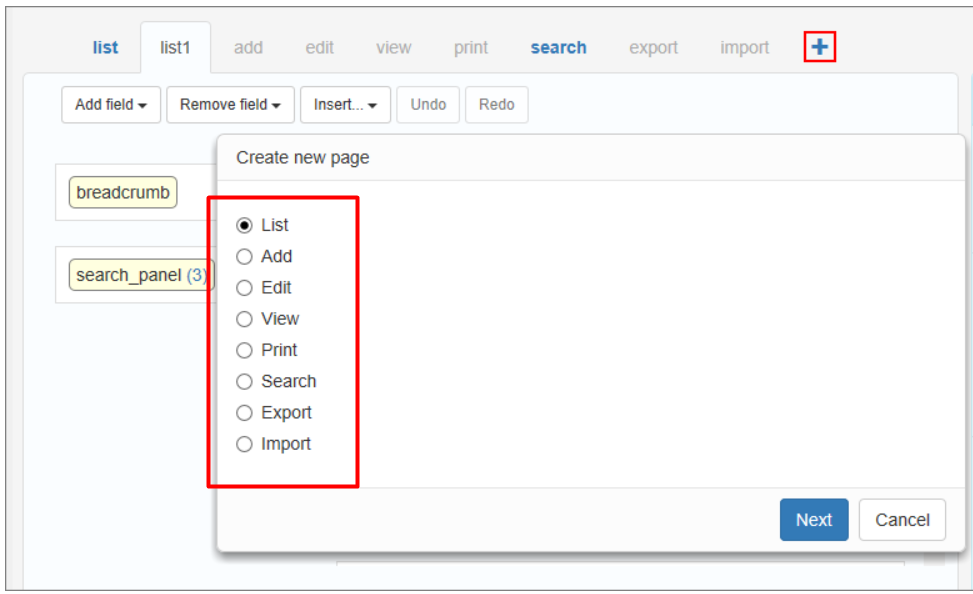
These are the web pages available:-


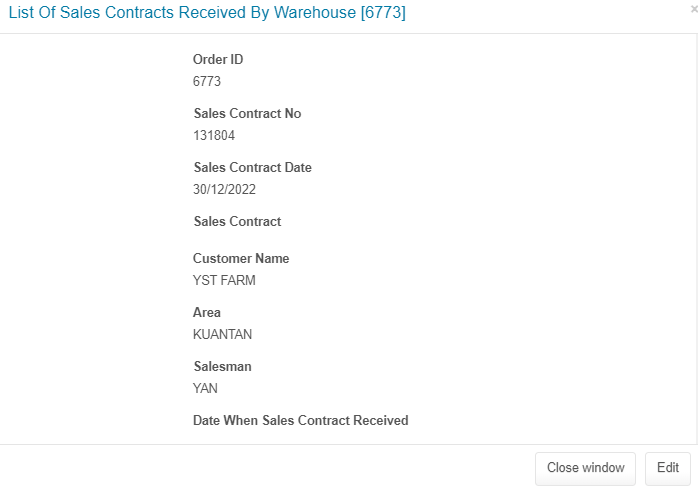
The difference between “List Page” and View Page”:-

LIST VIEW
https://xlinesoft.com/phprunner/docs/list_page_settings.htm
A page that shows the table records and the buttons to work with these records.
https://xlinesoft.com/phprunner/docs/choose_pages_screen.htm
A page that shows the selected record only, without the additional buttons.
https://xlinesoft.com/phprunner/docs/insert-standard-button.htm#list_page
Functionality for List Page

  • grid_copy
  • grid_edit
  • grid_inline_cancel
  • grid_inline_edit
  • grid_inline_save
  • grid_view
  • Add new – Opens the Add page
  • Advanced search – Opens the advanced search page
  • Cancel – Visible when an inline add or edit is active. Cancels all edits
  • Create PDF – Downloads the table as a PDF document
  • Delete – delete the selected records
  • Delete selected – delete the selected records
  • Edit selected – Edits the selected records
  • Export results – Exports all of the results/the selected records into an .xls, .doc, or .csv file to download
  • Export selected – Exports all of the results/the selected records into an .xls, .doc, or .csv file to download
  • Hide search panel – Hides or shows the search panel
  • Import – Allows importing data from .xls, .csv files, or a simple text
  • Inline Add – Visible when the List page allows inline adding. This button opens an inline adding interface
  • Inline Edit – allows to edit multiple records without leaving the List page
  • Print – Opens the Print page
  • Save all – Visible when an inline add or edit is active. Saves all records that are being edited
  • Save search – Saves the current search for later retrieval
  • Show search panel
  • Update selected – allows editing multiple records at once
https://xlinesoft.com/phprunner/docs/insert-standard-button.htm#view_page
Functionality for View Page

  • next/prev – These buttons switch between the records in the table
  • Back to list – Opens the List page
  • Close window – Closes the window. Visible only in a popup window
  • Edit – Opens the Edit page
  • Next step – Proceeds to the next step
  • PDF View – Creates a PDF document of the Print or View page

How MOBITEK SMS Modem Can Be Used for Transactional SMS?

What is Transactional SMS?

  • used by businesses to relay transactional information.
  • through this type of SMS, businesses can reach subscribed customers directly to share important details that aren’t related to promotional activity.
  • most commonly automated, triggered by customer actions.
  • provide value to customers with personalized and unique text messages.
  • benefits of sending transactional messages via SMS:
    • fast deliver, deliver in a few seconds
    • convenient, all SMS sending to mobile number
    • high delivery rate, SMS open rate up to 98%
    • low cost and high return
    • integration capabilities
    • do not need opt-in


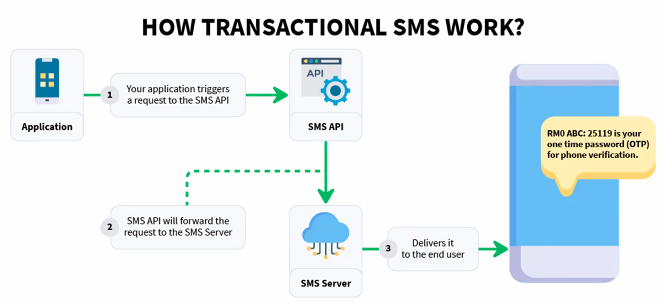
How does Transactional SMS work?

For “SMS API”, you can use either:-

For “SMS Server”, you can use:-


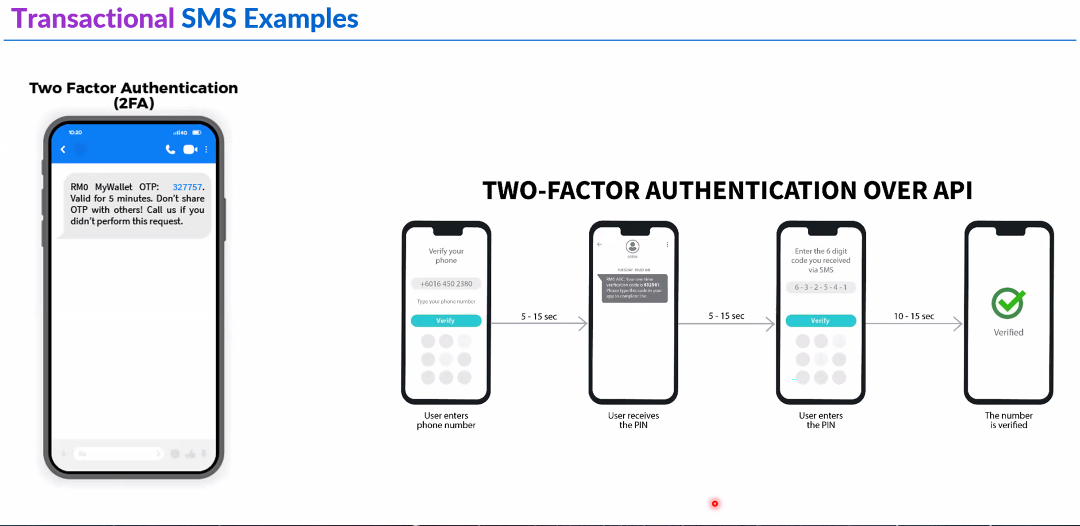
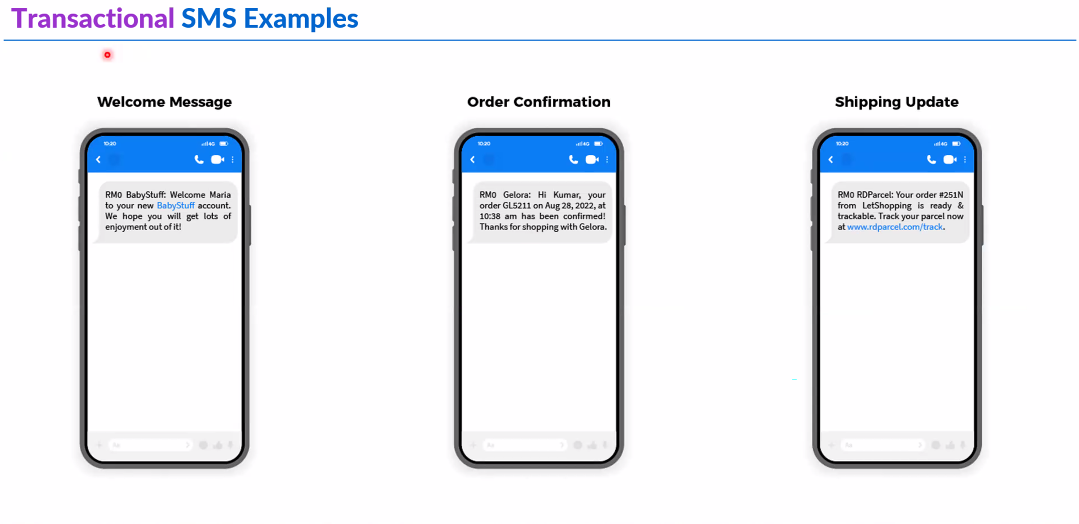
Transactional SMS Examples

How to Configure 2 Units of MOBITEK S150 to Connect 2 Electrical Equipments on Separate Locations

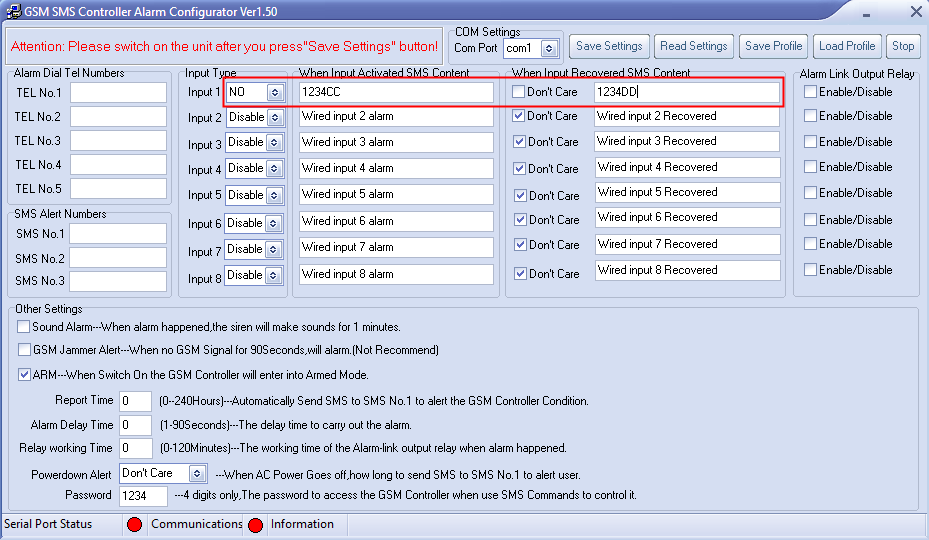
  1. For S150 unit #1, it will be configured as follows:-
    • the SMS content should be set to 1234CC and 1234DD
    • when S150 unit #1 detects an alarm, it sends out a SMS to S150 unit #2
  2. For S150 unit #2, there is no need to do any configuration in “Alarm Configurator” software
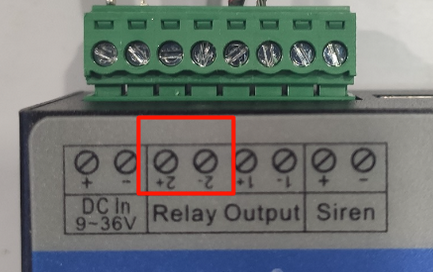
    • the device or equipment must be connect to relay output no. 2 (only this output can accept SMS command to turn on or off) of S150 unit #2 :-
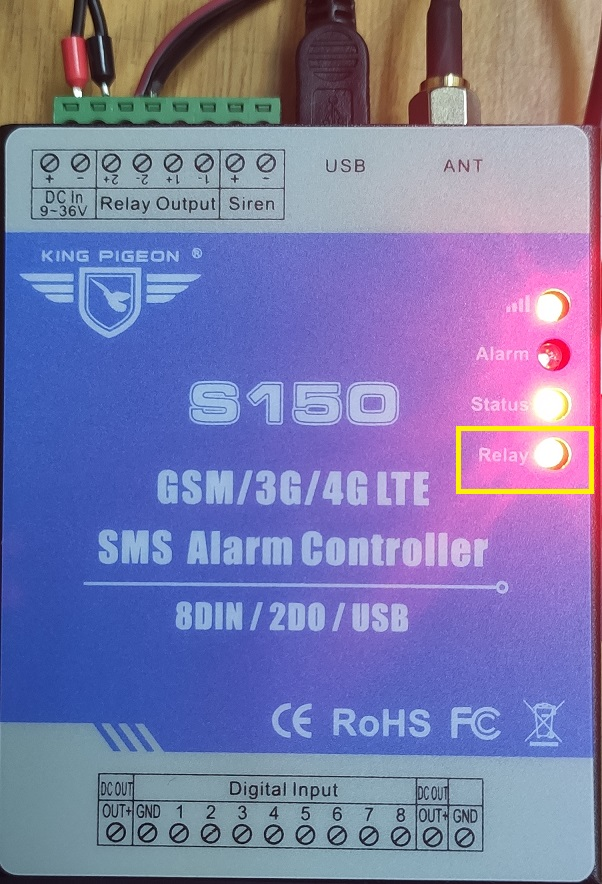
  3. On S150 unit #2, the “Relay” LED will turn on (red colour) when “1234CC” SMS command is received.
  4. The “Relay” LED will turn off when “1234DD” SMS command is received.


Problem with Relay Output of S150

  1. S150 cannot supply power to device or equipment connected to both “Relay Output” no. 1 and no. 2, therefore it cannot power up the other modem.
  2. Only “Relay Output” (digital output) no. 2 can accept SMS command.
  3. S150 acts as a switch (turn on or off).

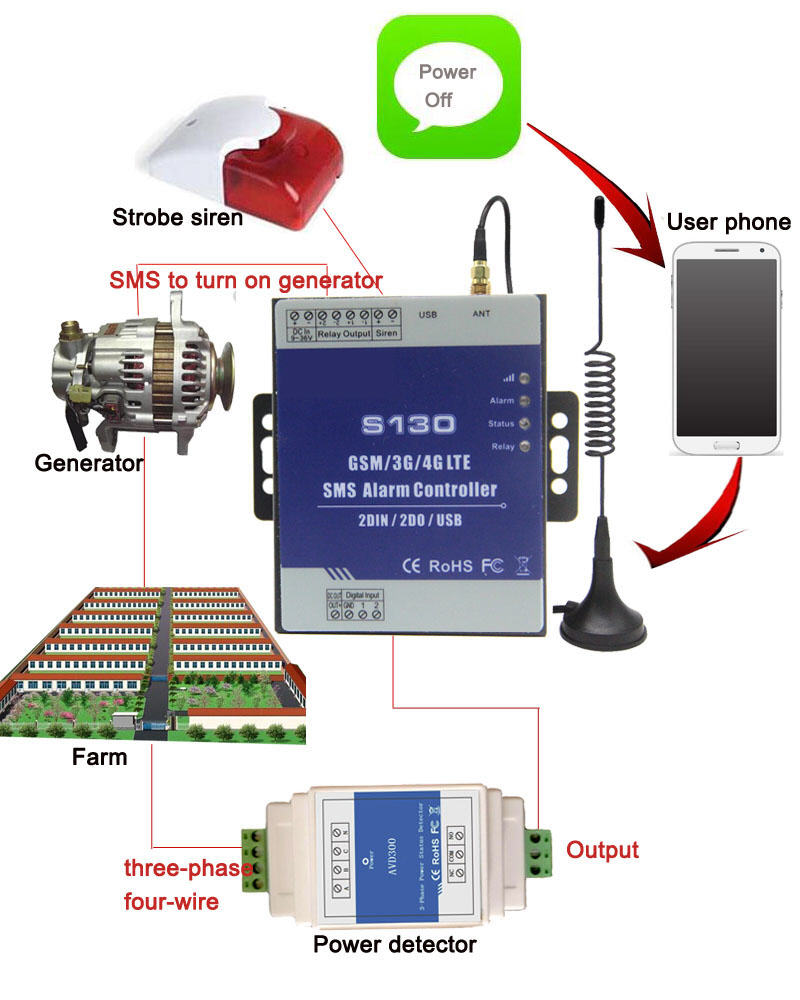
Now MOBITEK SMS Controller Supports 4G Network

We are pleased to inform you that MOBITEK SMS Controller supports 4G Network.

MOBITEK® SMS Controller is a very simple device which can be used for authorized door access, controlling gates, switching of remote equipments, car parking systems. SMS Controller can be used in places which require turning ON/OFF your system, machines, and equipments remotely with a SMS text from your mobile phone and protect your assets.

For more information, please visit https://www.mobitek.my/main/product/mobitek-sms-controller/


For more information about IoT, please visit https://test.mobitek-system.com/category/iot/


How to Send E-Mail with MOBITEK Q25

DESCRIPTION AT COMMAND

Configure Parameters of a TCP/IP Context

AT+QICSGP=<contextID>,<context_type>,<APN>,<username>,<password>, <authentication>

AT+QICSGP=1,1,”yoodo”,””,””,0
OK

Activate a PDP Context

AT+QIACT=<contextID>

AT+QIACT=1
OK

AT+QIACT?
+QIACT: 1,1,1,”10.32.47.42″

OK

Configure SSL Type

//Set the SSL type for SMTP.

AT+QSMTPCFG=”ssltype”,<ssltype>

WITHOUT SSL

AT+QSMTPCFG=”ssltype”,0
OK


WITH SSL

AT+QSMTPCFG=”ssltype”,1
OK

AT+QSMTPCFG=”sslctxid”,1
OK

AT+QSSLCFG=”ciphersuite”,1,0xffff
OK

AT+QSSLCFG=”seclevel”,1,0 
OK

AT+QSSLCFG=”sslversion”,1,1
OK

Configure Parameters for SMTP Server

//Set the PDP context ID.

AT+QSMTPCFG=”contextid”,<contextID>

//Set the IP address or domain name and port of SMTP server.

AT+QSMTPCFG=”smtpserver”,<srvaddr>,<srvport>

//Set username and password.

AT+QSMTPCFG=”account”,<username>,<password>

//Set sender name and sender address.

AT+QSMTPCFG=”sender”,<sender_name>,<sender_email>

AT+QSMTPCFG=”contextid”,1
OK

AT+QSMTPCFG=”smtpserver”,”smtp.example.com”,587
OK

AT+QSMTPCFG=”account”,”*username*”,”$password$”
OK

AT+QSMTPCFG=”sender”,”MOBITEK”,”add-new-post@feed.mobitek.my”
OK

Add or Delete Recipients

AT+QSMTPDST=<mode>,<type>,<emailaddr>

Parameter:

  • <mode> – Integer type. Add or delete recipients:
    • 0 – Delete
    • 1 – Add
  • <type> – Integer type. The type of recipients:
    • 1 – All recipients
    • 2 – CC recipients
    • 3 – BCC recipients
  • <emailaddr> – String type. The email address of recipients. The maximum size of the parameter is 50 bytes.
AT+QSMTPDST=1,1,”sales@abc.my”
OK

AT+QSMTPDST=1,2,”marketing-director@abc.com”
OK

AT+QSMTPDST?
+QSMTPDST: 1,”sales@abc.my”
+QSMTPDST: 2,”marketing-director@abc.com”

OK

Edit the Subject of an Email

AT+QSMTPSUB=<charset>,<subject>

Parameter:

  • <charset> – Integer type. The character set of the subject.
  • <subject> – String type. The subject of the email. If <charset> is 0, this string will be the subject of the email. Otherwise, it is formatted as a hex string.
AT+QSMTPSUB=0,”TEST SMTP USING Q25″
OK

AT+QSMTPSUB?
+QSMTPSUB: 0,”TEST SMTP USING Q25″

OK

Edit the Body of an Email

AT+QSMTPBODY=<charset>,<body_length>,<input_time>

Parameter:

  • <charset> – Integer type. The character set of the body:
    • 0 – ASCII
    • 1 – UTF-8
    • 2 – GB2312
    • 3 – BIG5
  • <body_length> – Integer type. The specific length of body. If the length of inputted data is less than the specific value <body_length>, customers can exit from data mode by “+++”. The actual length of the body is the inputted data length. The range is 1-10240. Unit: byte.
  • <input_time> – Integer type. The maximum time to upload email body from COM port. The range is 1-65535, and the default value is 90. Unit: second.
  • Type to the email body after “CONNECT” appear. The words typed will not be visible.
AT+QSMTPBODY=0,50,60
CONNECT

+QSMTPBODY: 37

OK

Send an Email

AT+QSMTPPUT=<timeout>

Parameter:

  • <timeout> – Integer type. The maximum time to send an email. The range is 60-65535. Unit: second.
  • After “OK” response” then wait for the “+QSMTPPUT:” response. If the response is “+QSMTPPUT: 0,0” then the email sending is successful. If other number displayed in the first parameter, then the email sending has error. For example: “+QSMTPPUT: 665,0”.
AT+QSMTPPUT=300
OK

+QSMTPPUT: 0,0

Clear the Content of an Email

AT+QSMTPCLR

AT+QSMTPCLR
OK

Deactivate a PDP Context

AT+QIACT=<contextID>

AT+QIDEACT=1
OK