Download and view — MOBITEK S80 Modem Quick Installation Guide
Author Archives: Taufiq
Test Result of MOBITEK SMS Engine — Enterprise Edition with TLS 1.2
Conclusion: MOBITEK SMS Engine — Enterprise Edition starting from version 5.8 until 8.x supports TLS 1.2 .
| TEST DATE | SMS ENGINE VERSION | TLS 1.2 | SSL 2.0 | OS | MS SQL SERVER | ODBC DRIVER 64-BIT | ODBC DRIVER 32-BIT | .NET FRAMEWORK | TEST RESULT |
|---|---|---|---|---|---|---|---|---|---|
| 2020-05-14 | 8.3 | Enabled | Disabled by default | Windows Server 2012 64 bit | MS SQL Server 2017 Express | ODBC Driver 13 for SQL Server v. 2017.140.1000.169 | ODBC Driver 13 for SQL Server v. 2017.140.1000.169 | 4.7.2 | 16:50:30 SMS Engine Enterprise Edition service (8.3.0) started 16:50:35 Modem ID 8 : initialized |
| 2020-05-20 | 7.1 | Enabled | Disabled by default | Windows Server 2012 64 bit | MS SQL Server 2017 Express | ODBC Driver 13 for SQL Server v. 2017.140.1000.169 | ODBC Driver 13 for SQL Server v. 2017.140.1000.169 | 4.7.2 | 09:47:04 SMS Engine Enterprise Edition service (7.1.0) started 09:47:09 Modem ID 8 : initialized |
| 2020-05-20 | 8.3 | Enabled | Disabled by default | Windows Server 2012 64 bit | MS SQL Server 2017 Express | ODBC Driver 13 for SQL Server v. 2017.140.1000.169 | ODBC Driver 13 for SQL Server v. 2017.140.1000.169 | 4.7.2 | 10:29:17 SMS Engine Enterprise Edition service (8.3.0) started 10:29:22 Modem ID 8 : initialized 10:31:39 SMS Engine Enterprise Edition service (8.3.0) stopped |
| 2020-05-21 | 5.8 | Enabled | Disabled by adding DWORD: “Enabled” with value 0 in registry |
Windows Server 2012 64 bit | MS SQL Server 2017 Express | ODBC Driver 13 for SQL Server v. 2017.140.1000.169 | ODBC Driver 13 for SQL Server v. 2017.140.1000.169 | 4.6 | 16:10:25 SMS Engine Enterprise Edition service (version 5.8.1) started 16:10:29 Modem ID 8 : initialized 16:10:49 SMS Engine Enterprise Edition service (version 5.8.1) stopped |
AutoHotkey: How to Define 2 Alphabet Keys as Hotkey
AutoHotkey allows user to define a custom combination of two keys (except joystick buttons) by using ampersand (&) between them. As for example:
a & b::MsgBox Hello!!!
Hold down <a> key then press <b> key to trigger the message box.
But by using this way, key <a> will become a prefix key. In other words, it will causes key <a> to lose its original function when it is pressed, i.e. “a” will not appear in text box. To avoid this behaviour, one of the way is to apply the tilde prefix (~) to the key.
For example:
~a & b::MsgBox Hello!!!
Using tilde in front of keys will maintain the native function of the keys used. However, Special hotkeys that are substitutes for alt-tab always ignore the tilde prefix.
Source:
Comparison of ReadAllText vs ReadLine vs ReadBlock vs ReadAllLines
When using ReadAllText method to read a log file with a size of 21.83MB, it takes between 7 seconds (for powerful CPU) to 12 seconds (for weak CPU).
| SOLUTION | SOLVED? |
|---|---|
|
Failed |
| StreamReader.ReadLine
Source:
Dim file As New FileInfo("path\to\file")

Using reader As StreamReader = file.OpenText()
    While Not reader.EndOfStream
        Dim nextLine As String = reader.ReadLine()
        ProcessLine(nextLine)
    End While
End Using
|
NO
This method generates error maybe because the memory usage increase overtime due to many lines data read Or maybe because i don’t actually know the correct way to use this method |
| StreamReader.ReadBlock Source: Const MAX_BYTES As Integer = 1048576 * 5 '=10 MB Dim bytesRead(MAX_BYTES) As Char Dim numBytesRead As Integer Dim currentPos As Integer = 0 Dim strFileName As String Dim strm As System.IO.Stream Dim TextLine As String Dim FileDetail As IO.FileInfo OpenFileDialogMain.ShowDialog() strm = OpenFileDialogMain.OpenFile() strFileName = OpenFileDialogMain.FileName.ToString() Using reader As System.IO.TextReader = _ System.IO.File.OpenText(strFileName) numBytesRead = _ reader.ReadBlock(bytesRead, currentPos, MAX_BYTES) TextLine = reader.ReadLine() End Using txtEditor.Text = New String(bytesRead) txtEditor.Text += TextLine txtEditor.Text = txtEditor.Text & vbCrLf & Now
|
NO
This method can be used to fetch .log file but a bit slower than ReadAllText() method. Completion time to load the log file into textbox is approximately 11-12 seconds |
| File.ReadAllLines
Source: |
NO
This method opens a text file, reads all lines of the file into a string array, and then closes the file. To load the string array into the textbox will use the same method as ReadLine() which is using Looping |
Test Methodology
| TEST | DELL-E6410 | MSI |
|---|---|---|
| StreamReader.Readline
How long does it take for Control Panel to load the log file |
No result because of error | No result because of error |
| StreamReader.ReadBlock
How long does it take for Control Panel to load the log file “X:\Support\Support Cases\264 (I19-2460-MACRO-ASP)\2020_1_14.log”, File size: 21.83MB |
11-12 seconds | 11-12 seconds |
| File.ReadAllLines
How long does it take for Control Panel to load the log file “X:\Support\Support Cases\264 (I19-2460-MACRO-ASP)\2020_1_14.log”, File size: 21.83MB |
No result because of error | No result because of error |
| What is the CPU? | Intel(R) Core(TM) i5 CPU M560 @ 2.67GHz | Intel(R) Core(TM) i5-4200 CPU @ 2.50GHz |
| What is the RAM? | 4.00 GB (3.43 usable) | 8.00 GB |
Conclusion: stick with ReadAllText method to read a log file.
Fail to Get MOBITEK S80 to Work in USB port in VirtualBox
- VirtualBox version: 6.1 ( v.6.1 cannot solve the problem — Upgrade VirtualBox from v. 5.1 to 6.1 to Solve USB driver of S80 may not work in VirtualBox)
- OS in virtual machine: Windows Server 2012 64-bit
This method mentioned in https://www.wintips.org/how-to-setup-usb-on-virtualbox-guest-oracle/ was used to test the USB driver of MOBITEK S80 3G Modem in the virtual machine (Windows Server 2012 64-bit)
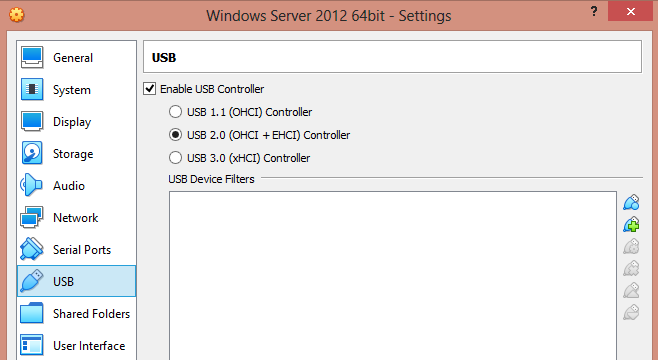
After installing Extension Pack in VirtualBox, USB 2.0 and USB 3.0 shown in the USB list
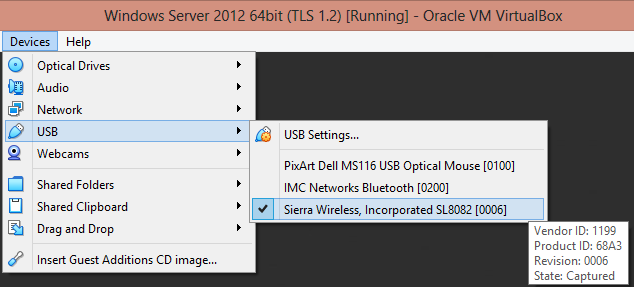
When virtual machine was started, the “Sierra Wireless” device was shown in the list:-
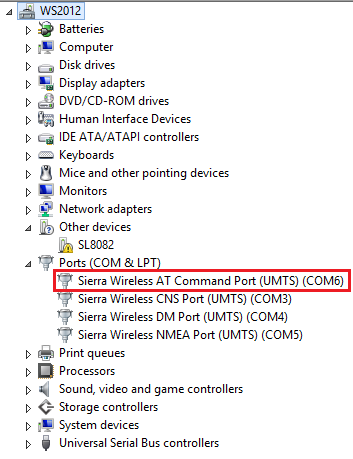
The COM PORT (COM6) appeared in “Device Manager”:-
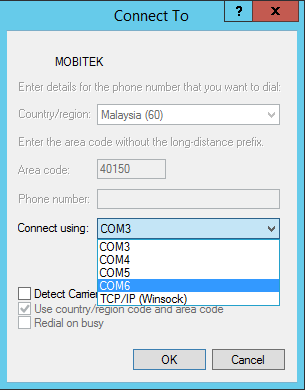
However, in Hyper Terminal the “AT-OK” test could not be performed because it seems like the Hyper Terminal only catch the physical COM PORT of the MOBITEK S80, but the connection is not actually established with the modem. Nothing can be typed in Hyper Terminal to test the connection.
The same problem happens in Linux Mint running in VirtualBox
- VirtualBox version: 6.1
- OS in virtual machine: Linux Mint 17 ‘Qiana’ Cinnamon 64-bit
Mobitek S80 that attached to Linux Mint running in VirtualBox can be detected when running the “dmesg | grep tty” command in Linux Mint’s Terminal
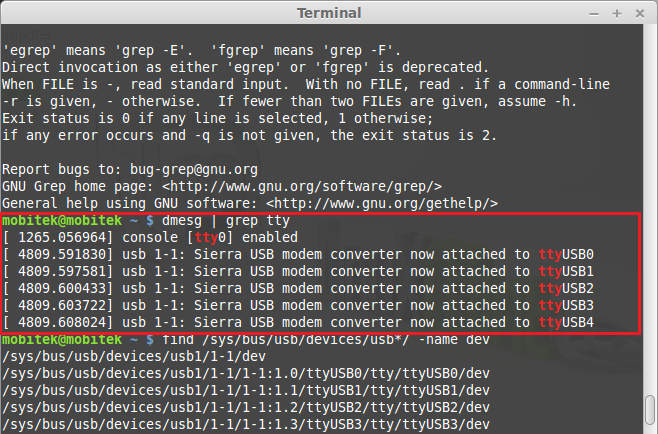
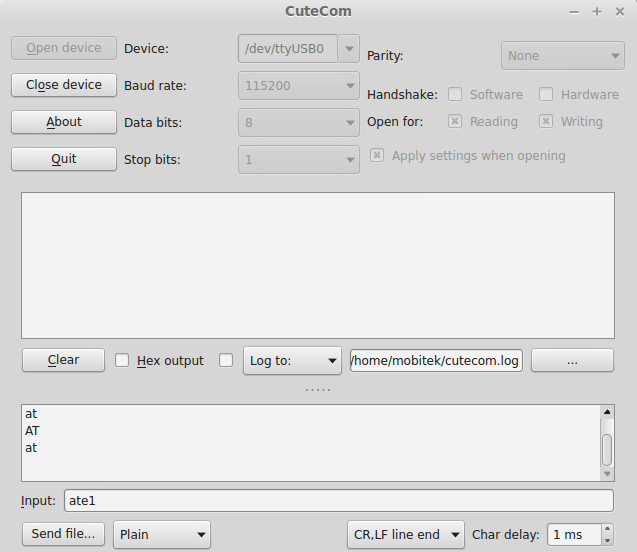
But each interface from “ttyUSB0” until “ttyUSB4” which MobitekS80 is attached to cannot be tested with AT command in CuteCom. CuteCom will be frozen when the AT command was entered.
List of Problems with Facebook Page
Problem: If the the post with video attached is edited, even though I did not remove the video, the video will be automatically removed.
Solution: none.
Problem:
- The default administrator account has problem with uploading video
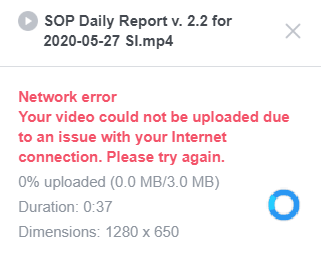
and accessing “Video library”

- The above 2 errors occurred when used in:-
- Opera browser Version:68.0.3618.125 in Asus laptop
- Chrome browser Version 83.0.4103.61 (Official Build) (64-bit) in Asus laptop
- Chrome browser Version 81.0.4044.138 (Official Build) (32-bit) in Dell-E6410 laptop
- IE 11 in Asus laptop
Solution: add another FB account as “Administrator” and able to solve the above roblem — able to access “Video library” and successfully upload video.
(T, please add here …)
How to Automatically Fill-In “Laporan Harian COVID-19”
Note: the report as been moved from http://survey.dosh.gov.my/laporanhariancovid19/ to https://notification.miti.gov.my, we have revised the script to automatically filled in the new report at this new post …
Quick Guide
- Install AutoHotkey (AHK).
- download AutoHotkey_1.1.30.03_setup.exe
- Select the script “DOSH v. 1.0-demo.ahk”.
- download the script DOSH v. 1.0-demo.ahk
- Run the script by double clicking on “DOSH v. 1.0-demo.ahk” file.
- Go to “Laporan Harian COVID-19” at http://survey.dosh.gov.my/laporanhariancovid19/
- Run the hotkey according to its page number. For example:
- on page 1, press <CTRL> then <1>, all fields on that page will be automatically filled;
- on page 2, press <CTRL> then <2>, all fields on that page will be automatically filled;
- …
- on page 5 (last page), press <CTRL> then <5>, all fields on that page will be automatically filled;
- Finally, manually click “Hantar” to submit the report. Refer to video below for a demonstration …
How to Configure TLS 1.2 in Windows Server
- Open Windows PowerShell and copy below command into it
# Create Keys for TLS 1.2 if not exist

new-item -path "HKLM:\SYSTEM\CurrentControlSet\Control\SecurityProviders\SCHANNEL\Protocols" -Name "TLS 1.2"

new-item -path "HKLM:\SYSTEM\CurrentControlSet\Control\SecurityProviders\SCHANNEL\Protocols\TLS 1.2" -Name "Server"

new-item -path "HKLM:\SYSTEM\CurrentControlSet\Control\SecurityProviders\SCHANNEL\Protocols\TLS 1.2" -Name "Client"

new-itemproperty -path "HKLM:\SYSTEM\CurrentControlSet\Control\SecurityProviders\SCHANNEL\Protocols\TLS 1.2\Client" -Name "Enabled" -Value 1

new-itemproperty -path "HKLM:\SYSTEM\CurrentControlSet\Control\SecurityProviders\SCHANNEL\Protocols\TLS 1.2\Client" -Name "DisabledByDefault" -Value 0

new-itemproperty -path "HKLM:\SYSTEM\CurrentControlSet\Control\SecurityProviders\SCHANNEL\Protocols\TLS 1.2\Server" -Name "Enabled" -Value 1

new-itemproperty -path "HKLM:\SYSTEM\CurrentControlSet\Control\SecurityProviders\SCHANNEL\Protocols\TLS 1.2\Server" -Name "DisabledByDefault" -Value 0
- Reboot server
- To check whether TLS 1.2 is configured, open Registry Editor and go to this path:
HKEY_LOCAL_MACHINE\SYSTEM\CurrentControlSet\Control\SecurityProviders\SCHANNEL\Protocols
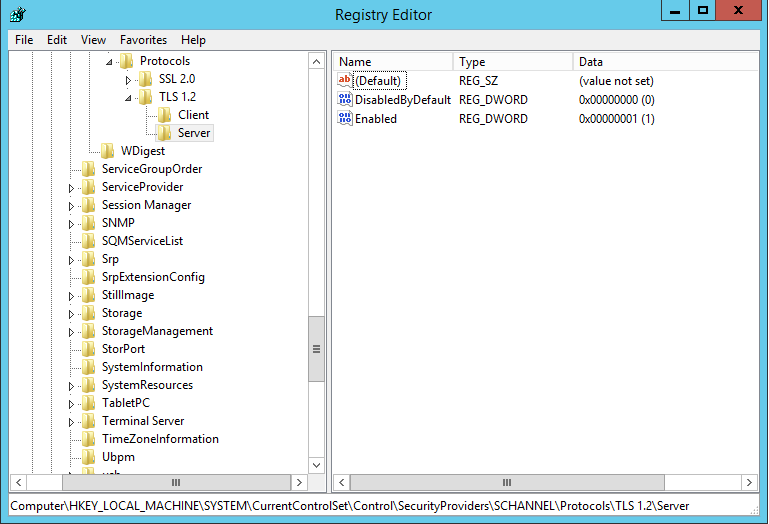
in this picture, it shows that Windows has “SSL 2.0” and “TLS 1.2” security protocol installed.
(OBSOLETE) Control Panel for MobiGATE SMS Engine — Enterprise Edition version 2.6 is Released
List of Fixes in Version 2.6
- Engine cannot start because service is still stopping (after “Stop” button is clicked). CP shows “Stopped” but in fact service is showing “Stopping”;
- Engine cannot stop because service is still starting (after “Start” button is clicked). CP shows “Started” bt in fact service is showing “Starting”;
- “Modem Status” is tab “Modem 9 to 16” is not showing colours, it is showing “5” or “0” instead. Happens in MS SQL Server only (does not happen in MySQL);
- Error message when connecting the “modem.state” table – “Location: CheckModemStatusVersion2_MSSQL Error message: Login failed. The login is from an untrusted domain and cannot be used with Windows authentication”;
- Error message when connecting the “modem.state” table – “Location: CheckModemStatusVersion2_MSSQL Error message: Login failed. The login is from an untrusted domain and cannot be used with Integrated authentication”;
- Conversion from string “” to type ‘Double’ is not valid. Caused by null or empty value in “Modem_State.Status”;
- After stop monitoring, modem ID 9 to 16 still showing modem status.By right, there should be no colour status and should be all grey colour;
- Set the application to run as administrator automatically.
Download
Existing customers of MobiGATE with valid warranty period or with valid annual support programme could download version 2.6 from here … (https://www.mobitek.my/download/MOBITEK%20MOBIGATE/Setup%20–%20Control%20Panel%20v.%202.6.zip)
More Information
Comparison Between Role of db_owner with Roles of db_datareader & db_datawriter in MS SQL Server
- db_owner role should only be given to the administrator who responsible for the database because this role can DROP the database
- db_datareader and db_datawriter is the minimum access that should be given to normal user to do the basic SELECT, UPDATE, INSERT and DELETE operation to the database
| db_owner |
db_datareader |
db_datawriter |
|
|
|
Source: